Publish a version
Editing changes the working state of a project. Your application reads the last published version, and that changes only when someone publishes. This page covers the publish panel of Keys, what it does with translations that are not ready, the list of versions and restoring one. Content publishes from its own panel, described in Publish and versions, and Concepts has the vocabulary both share.
Open the publish panel
Select Publish at the foot of the keys list. Next to the button are the version the project is serving and how long ago it was published.
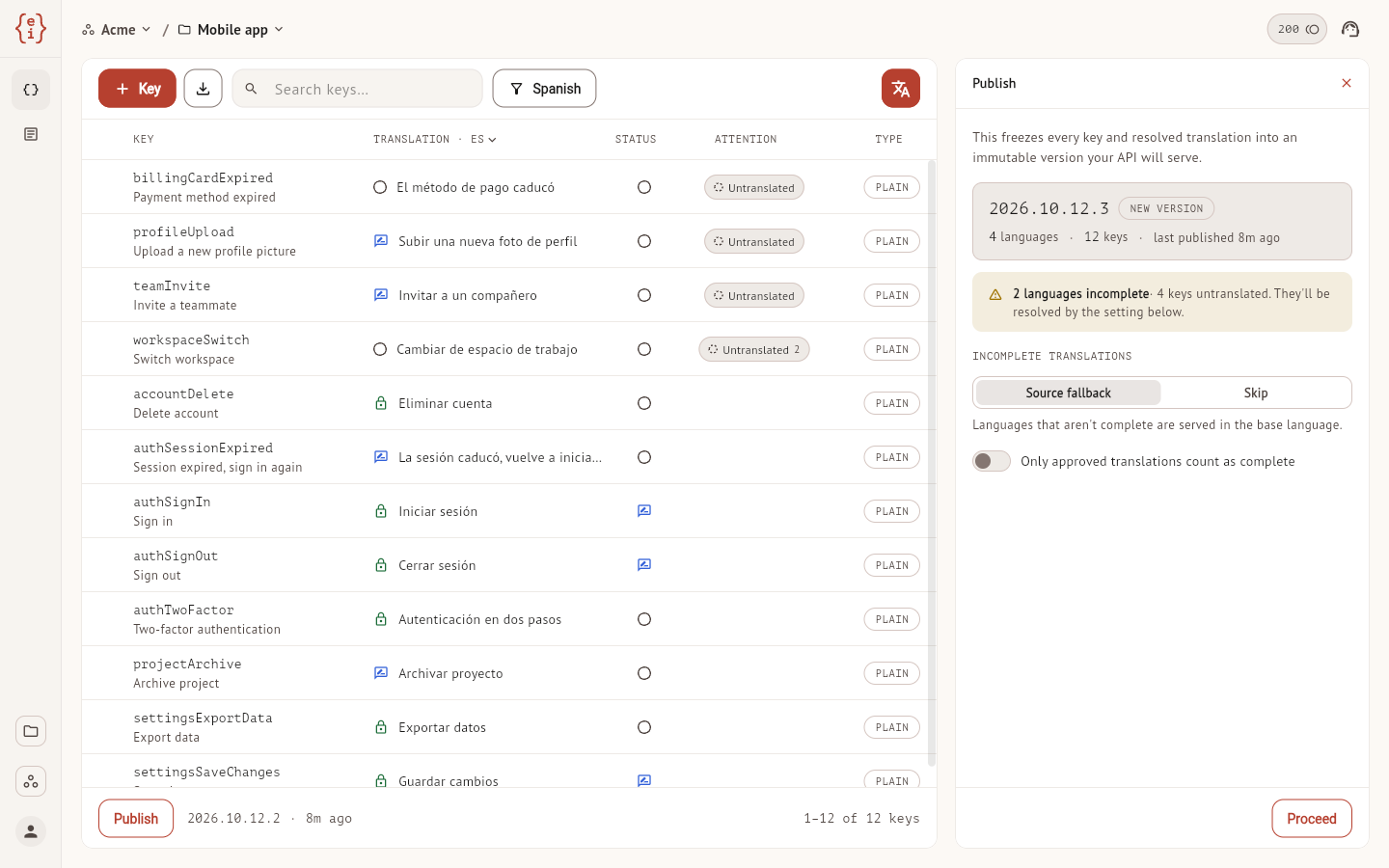
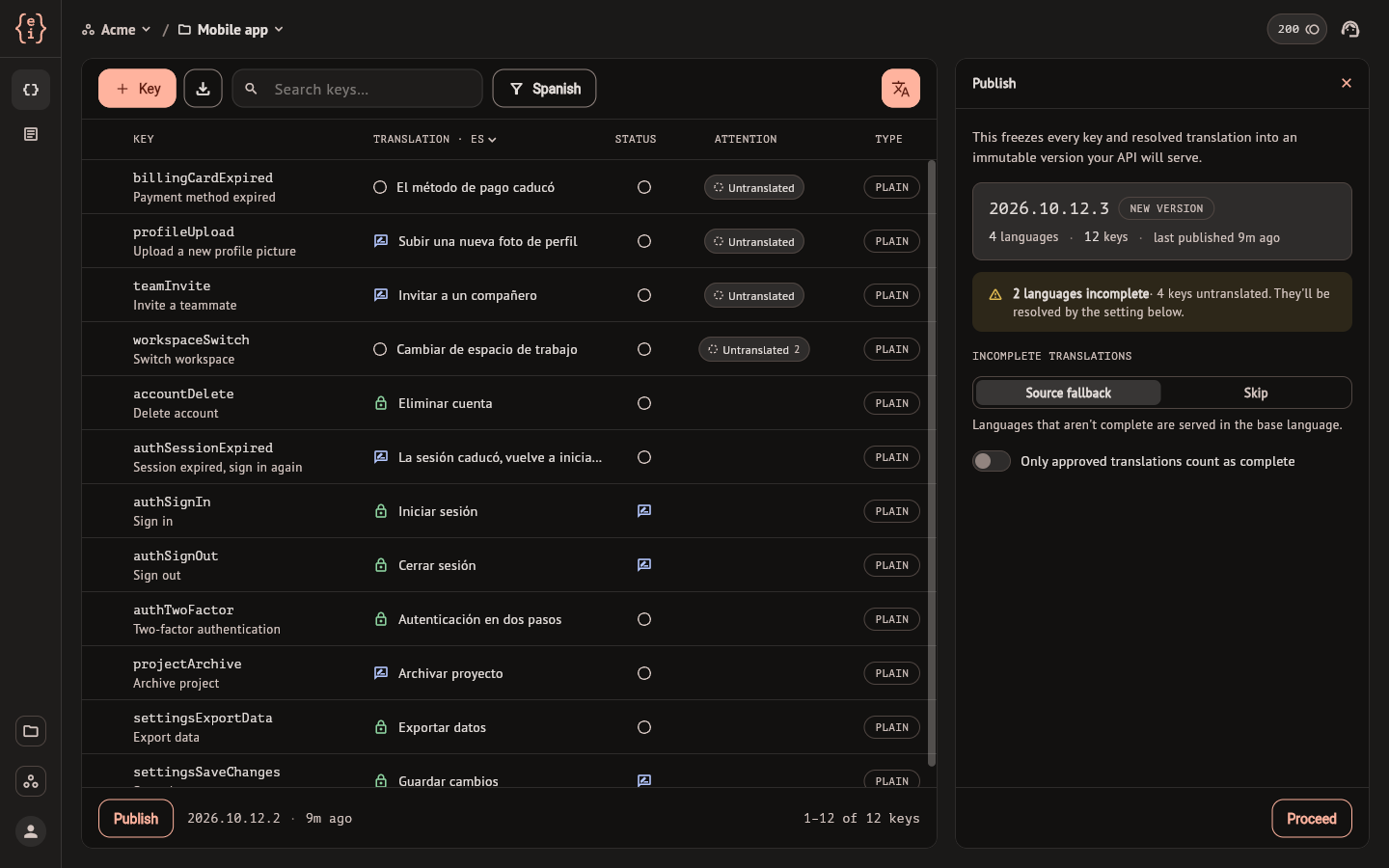
The panel covers every key of the project. A search or a filter left open in the list does not narrow what is published or what the panel counts. Disabled keys are left out of the count and of the version.
Publishing needs the project owner or an editor with publishing rights, described in Members and roles. For anyone else the publish is refused when they select Proceed.
What the panel tells you
From top to bottom:
- The version this publish would create, with the number of languages and
keys, and when the project was last published. A version is named
YYYY.MM.DD.N: the UTC date and a counter that starts at 1 each day. The number shown is a prediction, and another publish can take it first. - A warning with the number of target languages that are incomplete and the number of keys that lack a translation in at least one of them. With Only approved translations count as complete on, the same line counts the keys that are untranslated or unapproved.
- A note with the number of keys whose translation a person confirmed before the source text changed. Those translations are published as they are.
- In the macOS app, the folder the files are also written to, when the project has a Local folder in its Output settings.
- Incomplete translations and Only approved translations count as complete, the two settings of the next section.
The warning counts what the dashboard can see before publishing. The checks of ICU syntax, placeholders and markup run on the server during the publish, so a publish can leave out more values than the warning announced.
A project needs at least one output format to publish. Without one the panel shows a note with Open Output settings, and Proceed is unavailable until a format is saved there.
Translations that are not ready
Incomplete translations decides what a key gets in a language where it has no publishable translation. The choice applies to this publish.
| Setting | A key without a translation in a language |
|---|---|
| Source fallback | Is published in that language with the base-language text |
| Skip | Is left out of that language |
Use Skip when your build needs to detect what is missing: the published files then lack those keys. Under Source fallback every key has a value in every language, so a check for missing translations finds nothing.
The panel opens on the setting that matches How your app gets translations, in the project settings under General: Translation files opens on Skip and Live from server on Source fallback. A project left on Not decided yet opens with neither selected, and Proceed is unavailable until you pick one.
Only approved translations count as complete raises the bar: a translation that is not approved is treated like a missing one and follows the setting above. It does not wait for anyone and does not stop the publish. When the workspace requires approval before publishing, the switch is on and locked.
Content has a third setting, Hold, that keeps a whole document on the version it is serving. Keys publish as one version of the whole project, so it is not offered here.
Proceed
Proceed publishes at once: the panel is the confirmation. The dashboard answers "Published" with the version it created, and the foot of the keys list shows the new version.
Three outcomes need a second look.
Published with values left out. The version exists, and the server
refused some values while building it: a translation whose ICU syntax,
placeholders or markup do not match the source, or a plural without its
other form. The dialog lists them as key, language and reason, up to 50 for
each check, and says how many there were in all. Under Source fallback a
refused translation is published with the base-language text. When the
refused value is the source text itself, there is nothing to fall back to and
the affected languages have no value for that key. Under Skip the key has no
value in the affected languages. Fix the values and publish again.
Publish blocked. Two keys would get the same name in one of the project's output formats. Nothing is published. The dialog names the keys and the name they collide on; rename one and publish again.
Local files. In the macOS app, a project with a Local folder also gets its files written there after the publish. If a key could not be written, or two keys collide in a file, a dialog says so. The version is published either way.
The list of versions
Open the project settings, select History and stay on the Published tab.
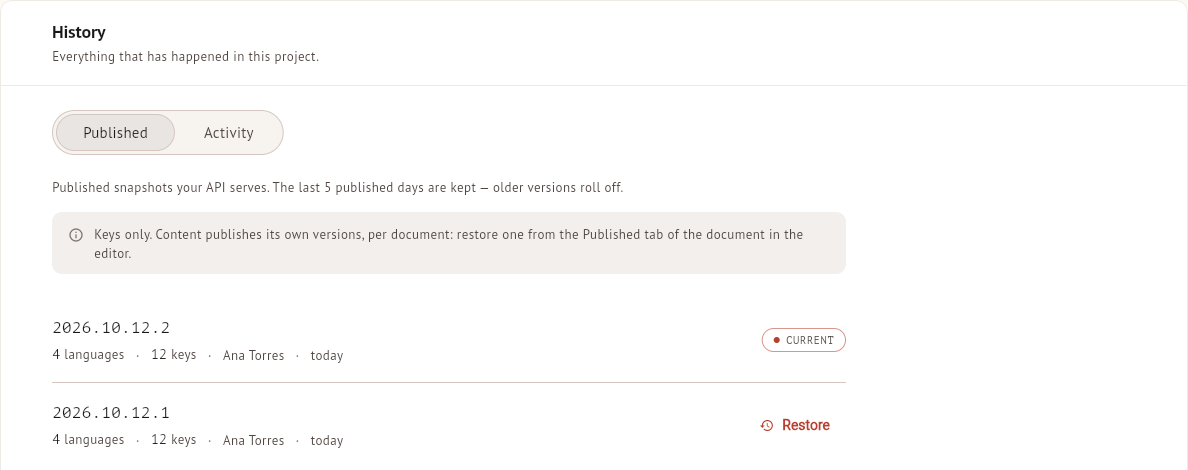
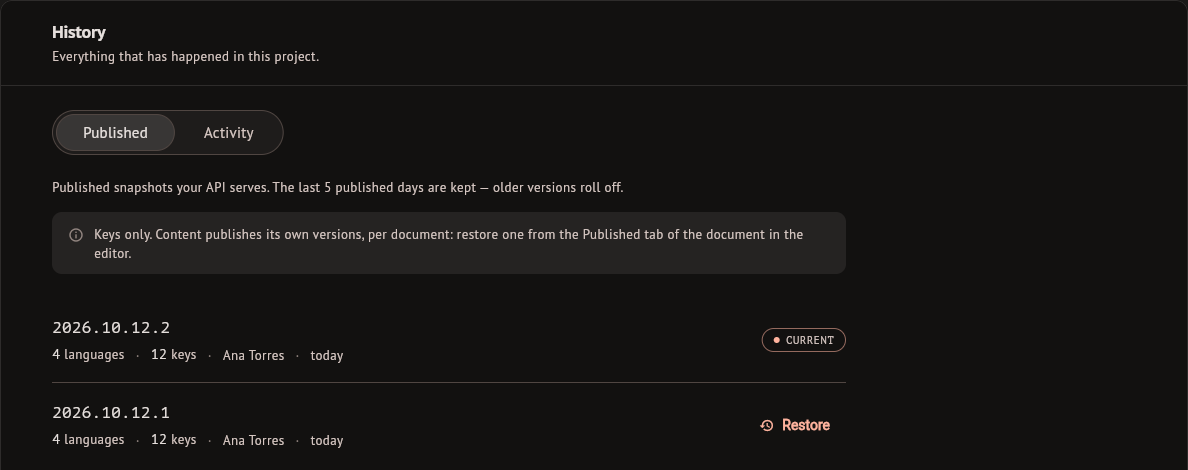
Versions are listed newest first, each with its languages, its keys, who published it and the day. The one your application is reading carries Current.
Every publish adds a version, and a version never changes afterwards. Two
publishes on the same day give two versions, .1 and .2. A publish made
with an API key is listed as "API key" followed by the label of the key.
Versions are kept for the last five days that had a publish, up to thirty versions for each of those days. Older ones are removed, and the current version is never removed.
The list is about keys. Each Content document keeps its own versions, in the Published tab of its Translation panel.
Restore a version
Restore, on any version that is not the current one, asks for confirmation and then publishes a new version with the content of the one you chose. The new version takes the next number of today, becomes the current one, and the dashboard answers "Restored as" with its name.
- Your working state is not touched. The keys and translations you see in the editor stay as they were, and the next publish ships them again.
- Nothing is rewritten. The version you restored from and the one you moved away from both stay in the list.
- It needs the same rights as publishing.
- The copy is exact. If the old version holds values that a publish today would refuse, the restore goes through and tells you how many.
- When the workspace requires approval before publishing, a version that contains translations without a recorded approval cannot be restored.
The CLI does the same with easyi18n rollback, and the API with the route in
Publish and delivery.
Export before the first publish
Export keys, in the Languages section of the project settings, downloads files from the last published version. On a project that has never been published it opens No published version yet instead, and Publish a version takes you to the keys list to publish. After editing a translation, publish again before you export it. Export keys covers the export screen.