Project settings
The settings of a project are in the left rail, under the name of the project: General, Languages, AI engine, Glossary, Dimensions, History, Output and API keys. This page says what each section holds and links to the page that covers it in depth. The settings of the workspace, such as members and billing, are a separate group in the same rail, described in Members and roles.
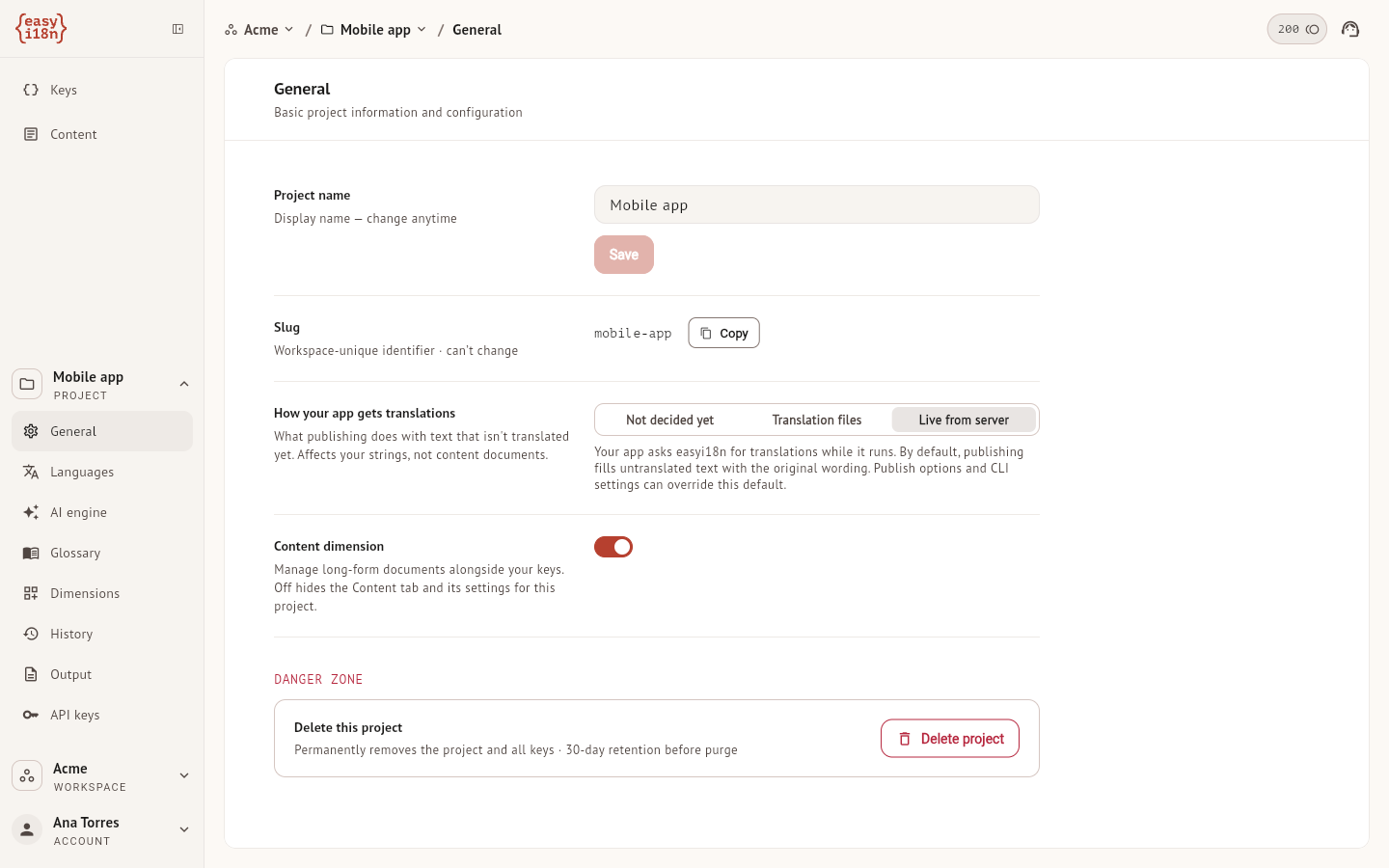
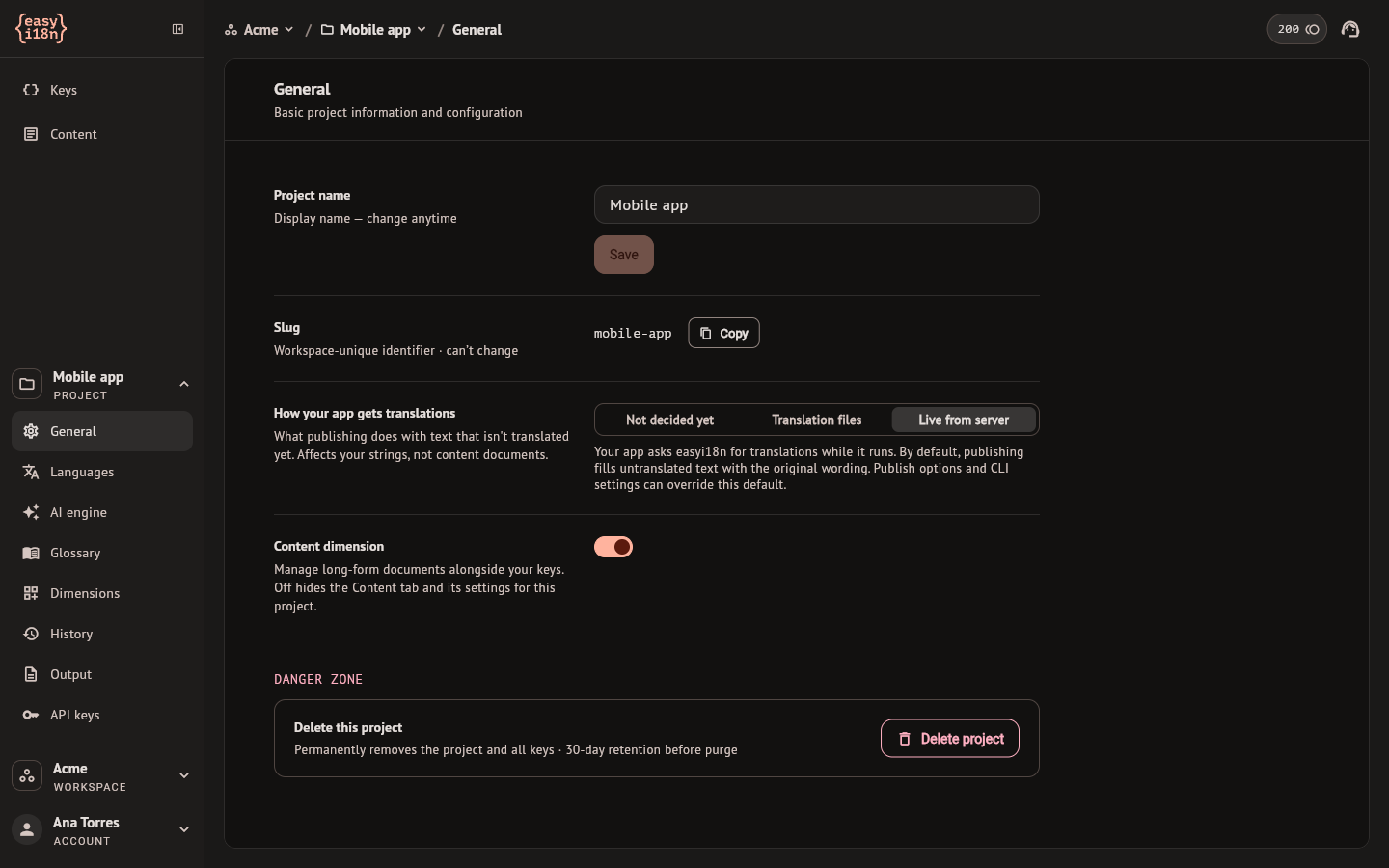
General
- Project name is the name shown in the rail and the breadcrumbs. Change it at any time.
- Slug identifies the project in links, after the handle of the
workspace:
@acme/mobile-app. It is unique in the workspace and cannot be changed. Copy puts it on the clipboard. - How your app gets translations sets what a publish does by default with a key that has no translation in a language. Translation files is for an app that ships its translations inside the build: the key is left out of that language. Live from server is for an app that loads them while it runs: the key is published with the base-language text. With Not decided yet the publish panel makes you choose each time. The setting applies to keys and not to documents, and the publish panel can override it for one publish.
- Content dimension turns documents on or off for the project. Off hides Content in the rail and its settings.
- Delete project, in the danger zone, asks for confirmation and moves the project to the deleted projects of the workspace. It can be restored from there for 30 days and is deleted for good afterwards, with all its keys.
Languages
The table has the base language first and one row per target language. For each target language it counts the keys, and the documents when Content is on, that are untranslated, translated, reviewed and approved.
- Add language searches the language catalog by name or by code, such as
"Portuguese" or
pt-BR. - AI Translate decides whether AI runs fill the language. With the switch off the language is manual: runs skip it for keys and for documents, and you translate it by hand.
- The translate button of a row opens the translation of that language, described in Translate with AI.
- The bin removes the language from the project after a confirmation. Its translations are kept and come back if you add the language again.
- Import keys and Export keys open the import and the export of the project. Export reads the last published version, as explained in Publish a version.
Pipelines explains the line of documents and its marks.
AI engine
The Context tab holds what the AI is told about your product on every translation, of keys and of documents alike.
- What is your app about? takes up to 2,000 characters: what the product does, who it is for and anything to avoid. Improve with AI rewrites what you typed.
- Tone is a register (Formal, Neutral or Casual) and a personality (Warm, Playful, Professional or Direct). easyi18n composes a tone line from the two picks. Edit the tone line shows it; once you edit it by hand it stays as you wrote it until you select Redraft.
Save applies the context to the translations made from then on.
The Model tab lists the models the project can translate with and marks the default one. Translate with AI covers it.
Glossary
The glossary is the terminology the AI has to respect, in keys and in documents. It has two lists, and a term can be in only one of them.
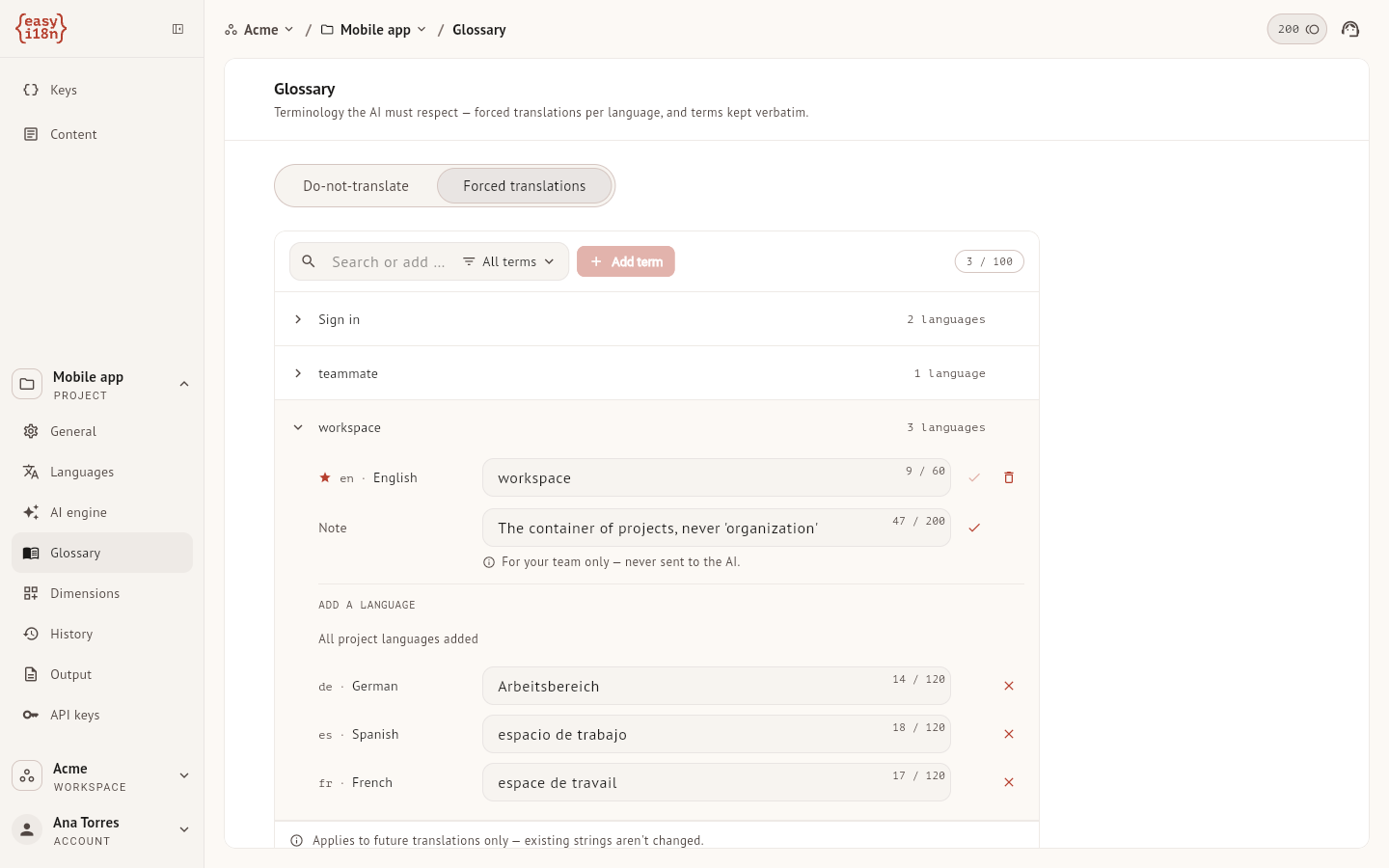
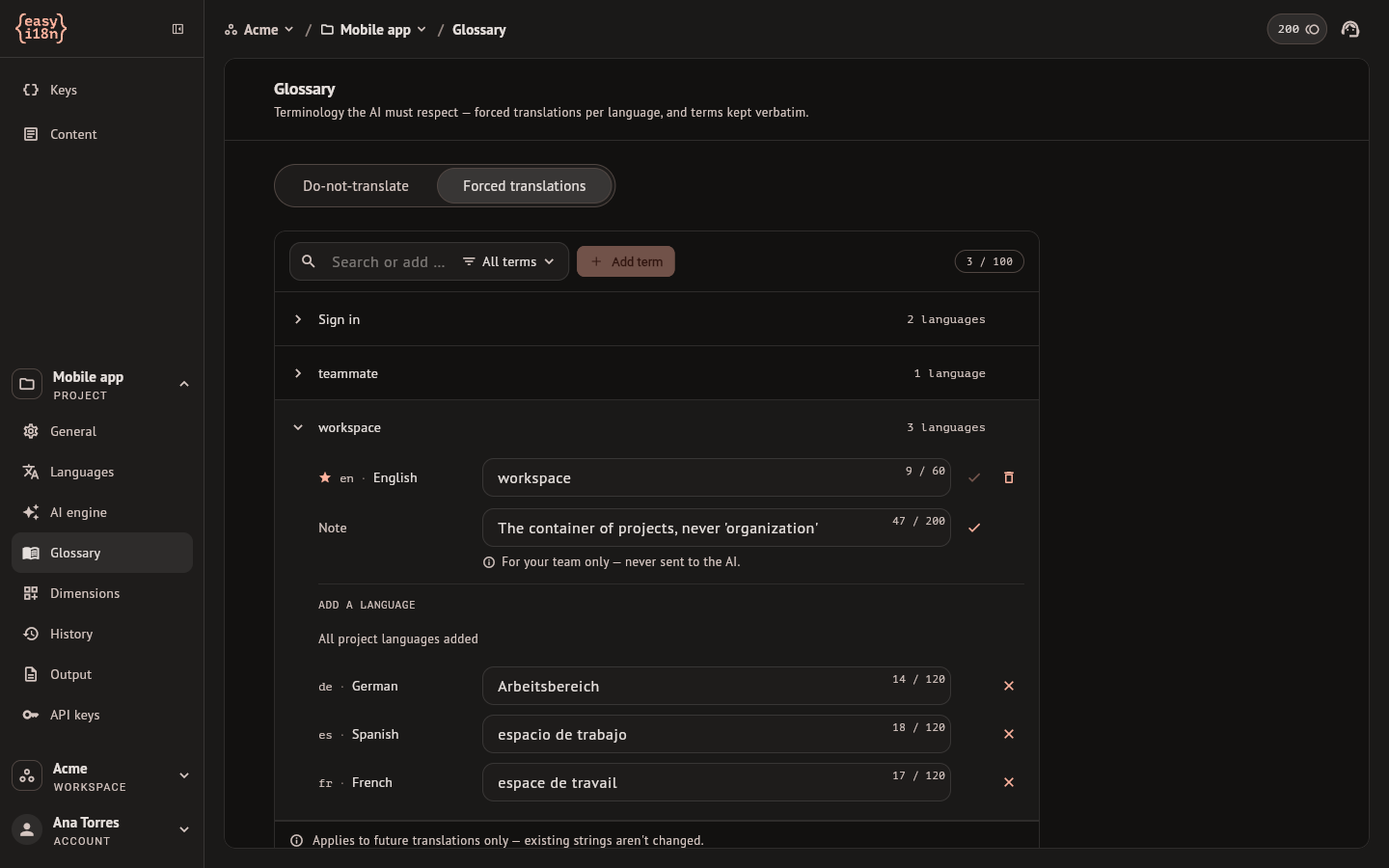
Do-not-translate holds the words that stay as they are in every language: brand, product and code names. Type a term and select Add term. The list takes up to 50 terms of up to 40 characters.
Forced translations holds terms with the exact translation the AI must use, language by language. Add the term, open it, and give it a translation in each language that needs one; a language you leave out is translated freely. A term can carry a Note for your team, which is never sent to the AI. The filter Missing in lists the terms that have no forced translation in a given language. The list takes up to 100 terms.
Both lists apply to the translations made after the change. Translations that already exist are not rewritten. Deleting a term offers Undo for a few seconds.
Dimensions
One tab for each dimension of the project.
- Keys holds source verification: the switch that makes a verified source a condition for AI translation, and the entry to the findings of the project. See Translate with AI.
- Content holds the pipelines that translate documents and the cost warning of a run. See Pipelines. With the Content dimension off, the section shows the Keys settings alone.
History
- Published lists the versions of the keys and restores one. See Publish a version.
- Activity is the record of what happened in the project and who did it. See Review and statuses.
Output
Output format is the file format your keys are written in when you publish, export or download through the API. Select one or two; the second covers a mixed stack, such as an iOS and an Android app. Once a project has a format, it always keeps at least one. The file formats reference describes each one. Saving a format does not publish anything: it changes the files of the next export and download.
Key name sets the style in which the dashboard writes and suggests key names. With Match output format on, that is the style of the primary format, the one marked with a star, and Example shows it. Turn it off to choose a style yourself. This does not change the keys that are stored, and each file format still writes key names in its own way.
Local folder is in the macOS app only. When it is set, a publish also writes the files into that folder.
Delivery domain chooses the host your app loads translations from at runtime: the default one or a custom domain of the workspace. See Delivery.
API keys
An API key lets the CLI, a CI job, a script or an AI agent act on this one project. Creating and revoking keys needs the project owner or an editor.
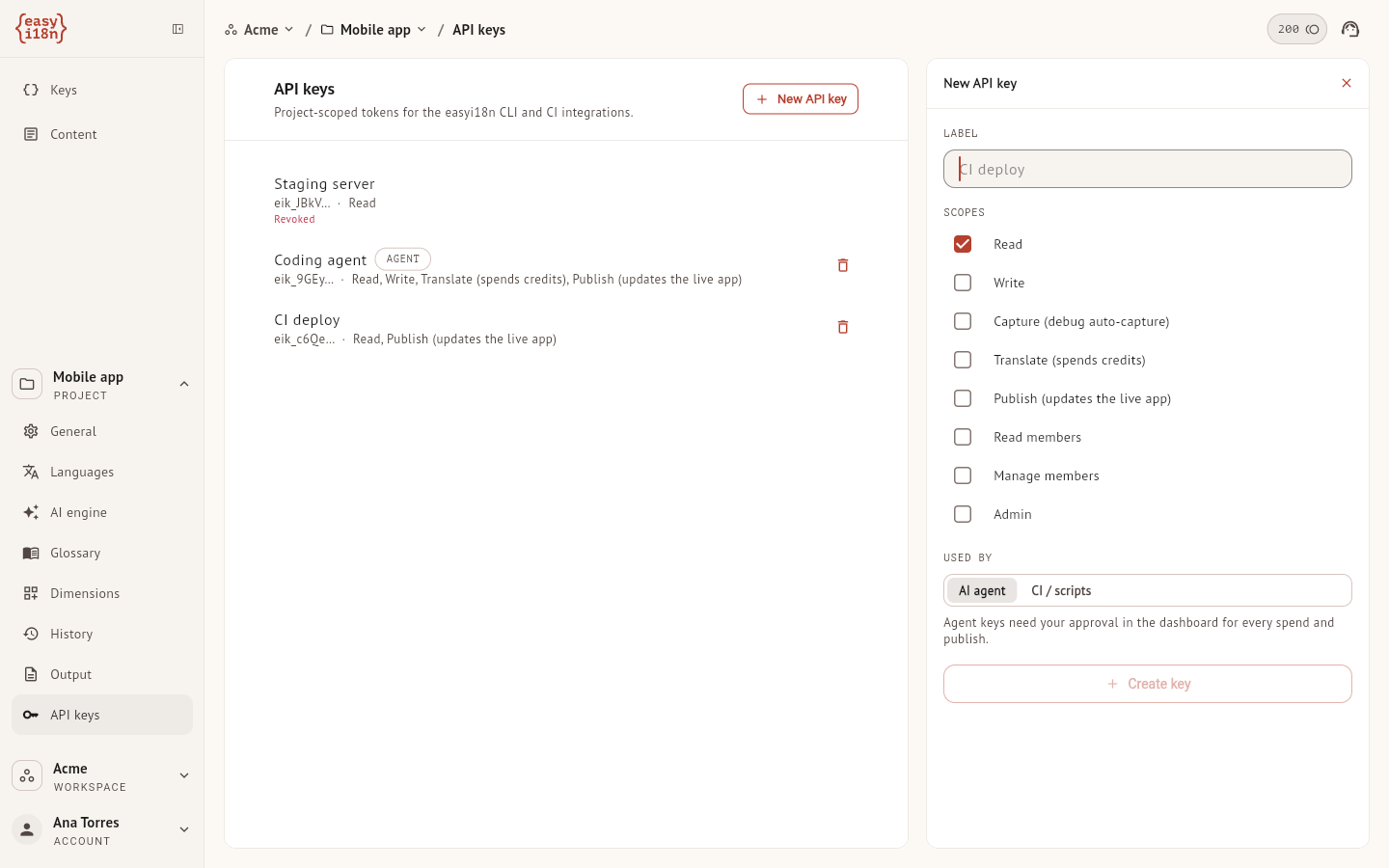
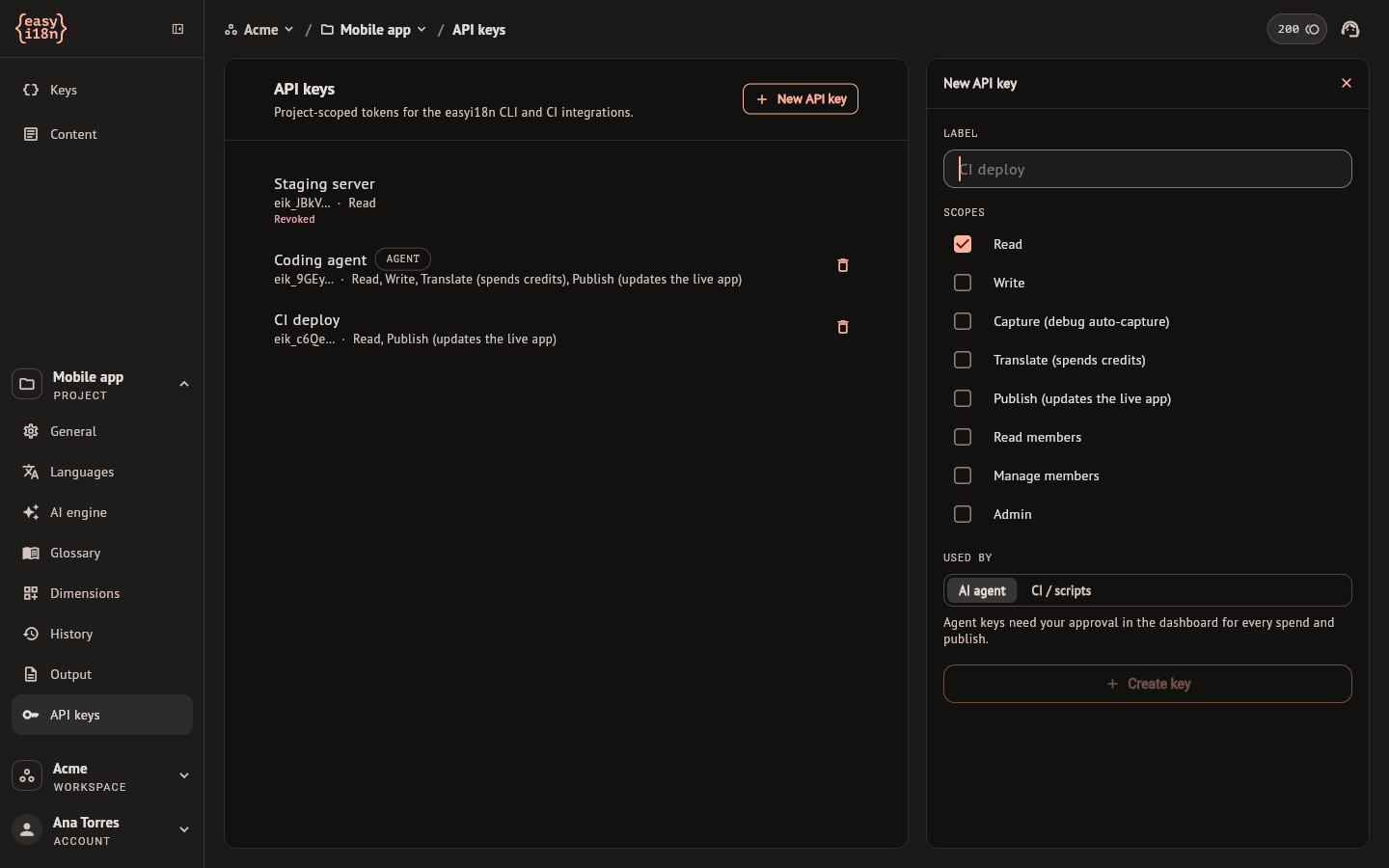
New API key asks for three things:
- A Label that tells you later what the key is for.
- Its Scopes, which are what the key may do: Read, Write, Capture, Translate, Publish, Read members, Manage members and Admin. Translate spends credits and Publish changes what your app receives, so give a key only the scopes its job needs. The REST API overview says which scope each route asks for.
- Used by. A key for an AI agent cannot spend credits or publish by itself: each of those actions waits for your approval in the dashboard, as described in Operations and approvals. A key for CI / scripts acts without asking.
The key is shown once, when it is created. Copy it then; the list keeps only its first characters.
Each key is listed with its label, its first characters and its scopes, and an agent key carries AGENT. The bin revokes a key at once, without a confirmation, and whatever uses it stops working. A revoked key stays in the list marked Revoked. How many keys a project can have depends on the plan.