Members and roles
People join a workspace, not a project. This page covers who can do what in a workspace, how to invite someone, how to limit a member to some projects, and the settings of the workspace itself. The vocabulary is in Concepts.
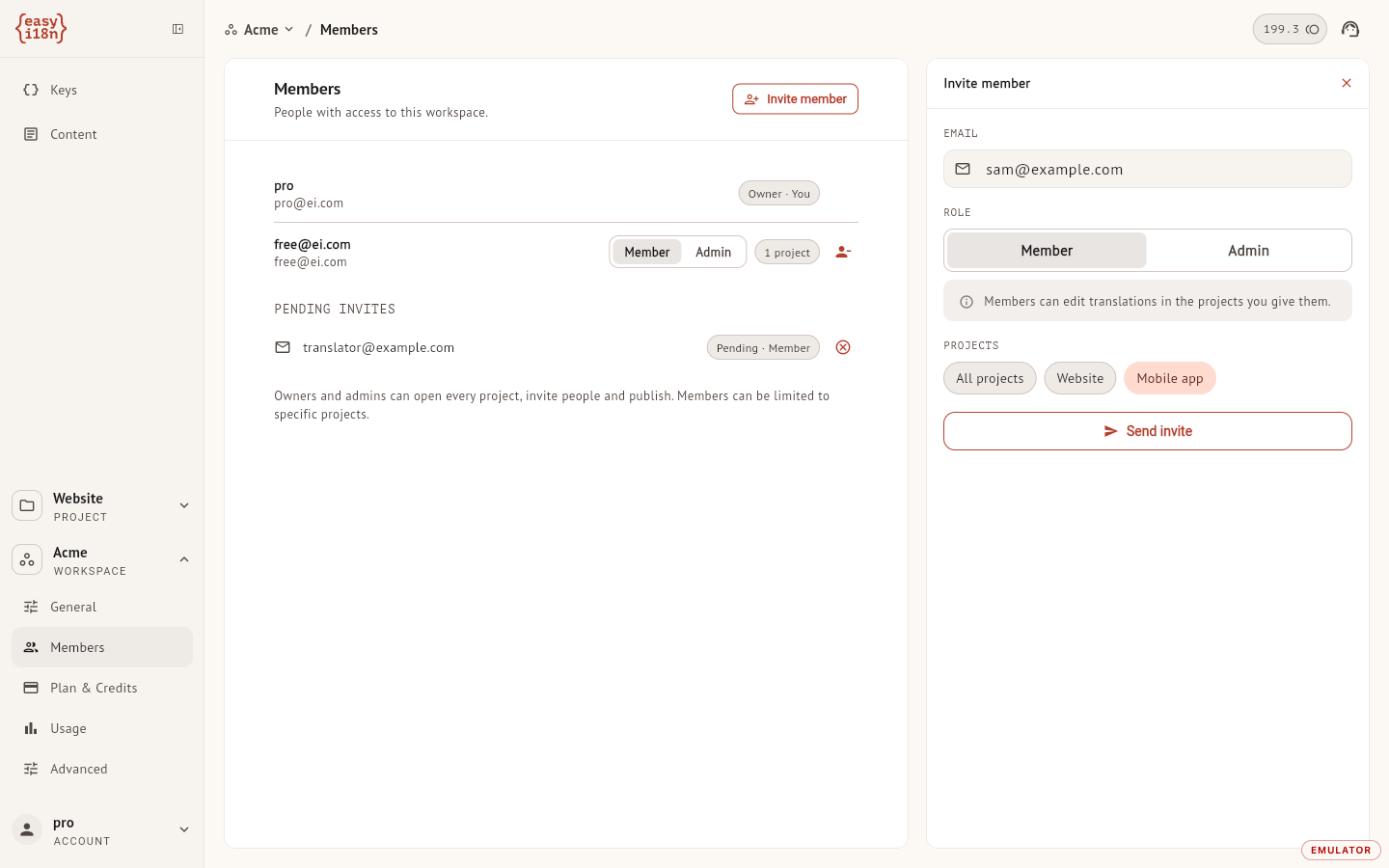
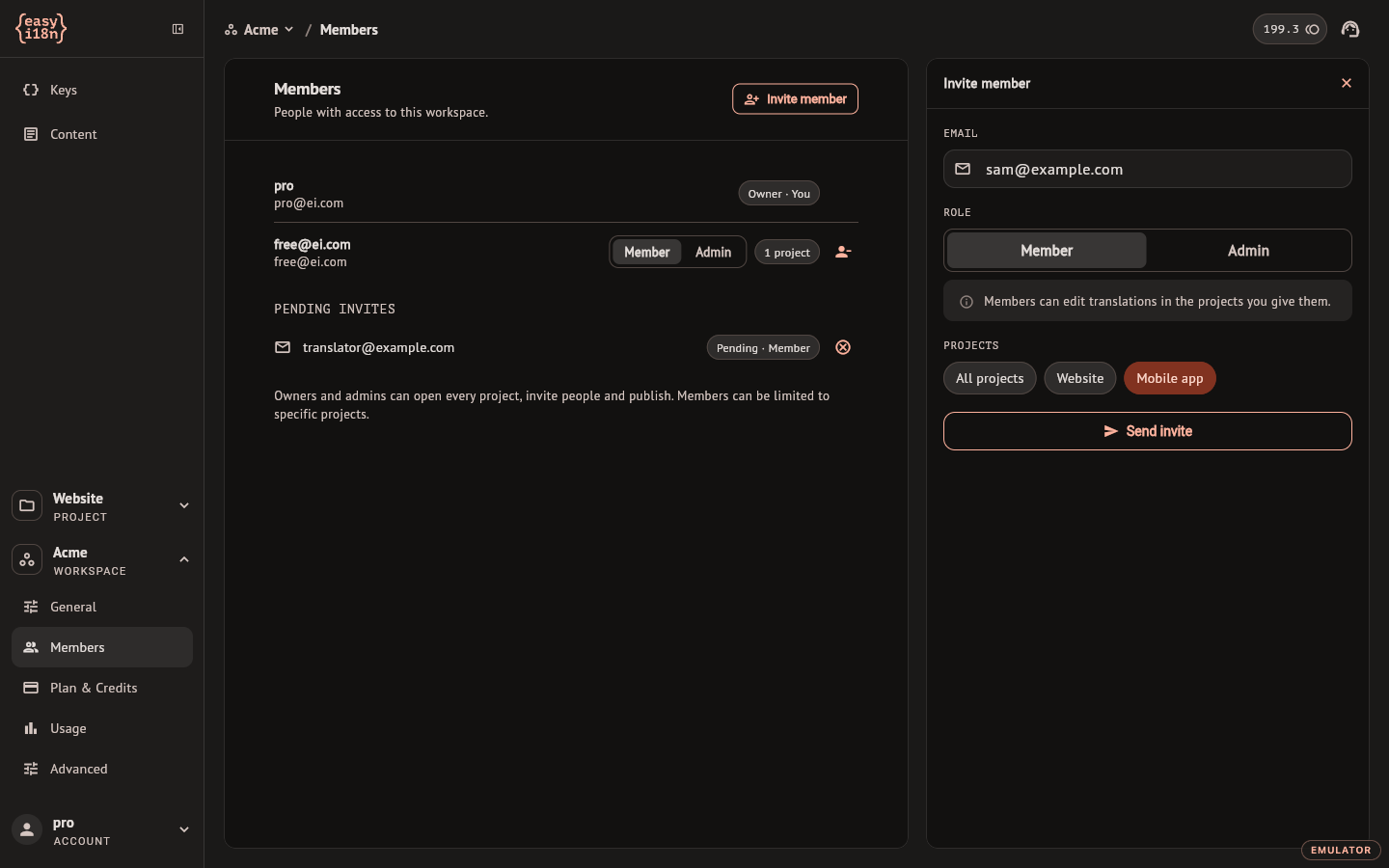
The workspace settings sit at the foot of the left rail, in the group that carries the workspace name: General, Members, Plan & Credits, Usage and Advanced.
What each role can do
| Owner | Admin | Member | |
|---|---|---|---|
| Open projects | All | All | All, or the ones chosen for them |
| Edit keys, documents and translations | Yes | Yes | Yes |
| Create projects | Yes | Yes | Yes |
| Publish and restore versions | Yes | Yes | Only in projects they created |
| Invite people, change roles, remove members | Yes | Yes | No |
| Read the Usage list | Yes | Yes | No |
| See and change the plan, buy credits, set the spending cap | Yes | No | No |
| Rename the workspace, change its URL, delete it | Yes | No | No |
A workspace has one owner: the person who created it. The owner's row in the list cannot be edited or removed, and ownership cannot be handed to another member from the dashboard.
Plans cap how many administrators a workspace has. The owner counts as one, and so does an invitation for an admin that has not been answered yet. Members are not capped.
Invite someone
Owners and admins see Invite member at the top of the Members section.
- Enter the person's email address.
- Pick the role, Member or Admin. Nobody is invited as owner.
- For a member, pick the projects: All projects, or one chip per project they should reach. An admin always reaches every project, so the picker is replaced by a note.
- Select Send invite.
The invitation appears under Pending invites with its role, and easyi18n emails the person a link to the dashboard. The invitation itself lives in the dashboard, not in the email: when the person signs in with that email address, verified, a strip at the top of the app says they have been invited to the workspace, with Accept and Decline. Someone without an account signs up with the same address first and sees the strip during onboarding.
Accepting adds the person to the workspace and to the projects the invitation covers, and switches them into it. Declining asks for confirmation; to join later they need a new invitation. Until the invitation is answered, an owner or admin can withdraw it with Revoke invite.
If the plan has no administrator seat left, inviting an admin opens the upgrade dialog and nothing is sent.
Change a role
Each row except the owner's and your own carries a Member / Admin switch. Changing it takes effect at once.
Promoting a member to admin gives them every project and discards any project limit they had. An admin moved back to member starts with all projects; narrow the access again if that is what you want.
Limit a member to some projects
Next to a member's role, a chip shows their access: All projects or a count. Select it to open Access for that person.
- All projects covers every project of the workspace, including the ones created later.
- Any other selection is a fixed list. The member opens those projects and no others, and a project created afterwards is not added to it.
Save access applies the change. At least one project has to stay selected; to take away all access, remove the member.
Only owners and admins see this chip. A member's own view of the list shows roles and nothing about project access.
Remove a member
The remove button at the end of a row asks for confirmation. The person loses access to the workspace and to all its projects at once. What they wrote stays in the projects, and you can invite them again later.
Workspace name, URL and deletion
The General section, titled Global once open, holds what belongs to the workspace as a whole. Only the owner can change it.
- Workspace name is what the workspace switcher and the breadcrumbs show.
- Workspace URL is the handle, the
@acmepart of every project link. It takes lowercase letters, digits and hyphens, and it is unique across easyi18n: a handle someone else holds is refused. - Require approval before publishing makes every publish in the workspace ship approved translations only, from the dashboard and from the API alike. Turning it on needs a plan that includes it; turning it off is always allowed.
- Deleted projects lists the projects deleted in the last 30 days and restores one. See Trash.
- Delete this workspace is available once the workspace has no projects. It removes the workspace, its settings and its members' access, cancels its subscription, and cannot be undone. If it was your personal workspace, another one of yours becomes personal; if it was your last, the app takes you through onboarding to set up a new one.
The Advanced section holds custom delivery domains, on the plans that include them. Delivery covers registering one.