Pipelines
A pipeline is the ordered list of AI steps that a translation run applies to a document. Every project has one, and it starts with a single step, Translate. This page covers editing that pipeline, writing your own steps, keeping several pipelines, and the table that shows how far each language is.
Pipelines are part of the project settings: open Dimensions in the project's group of the left rail and select the Content tab.
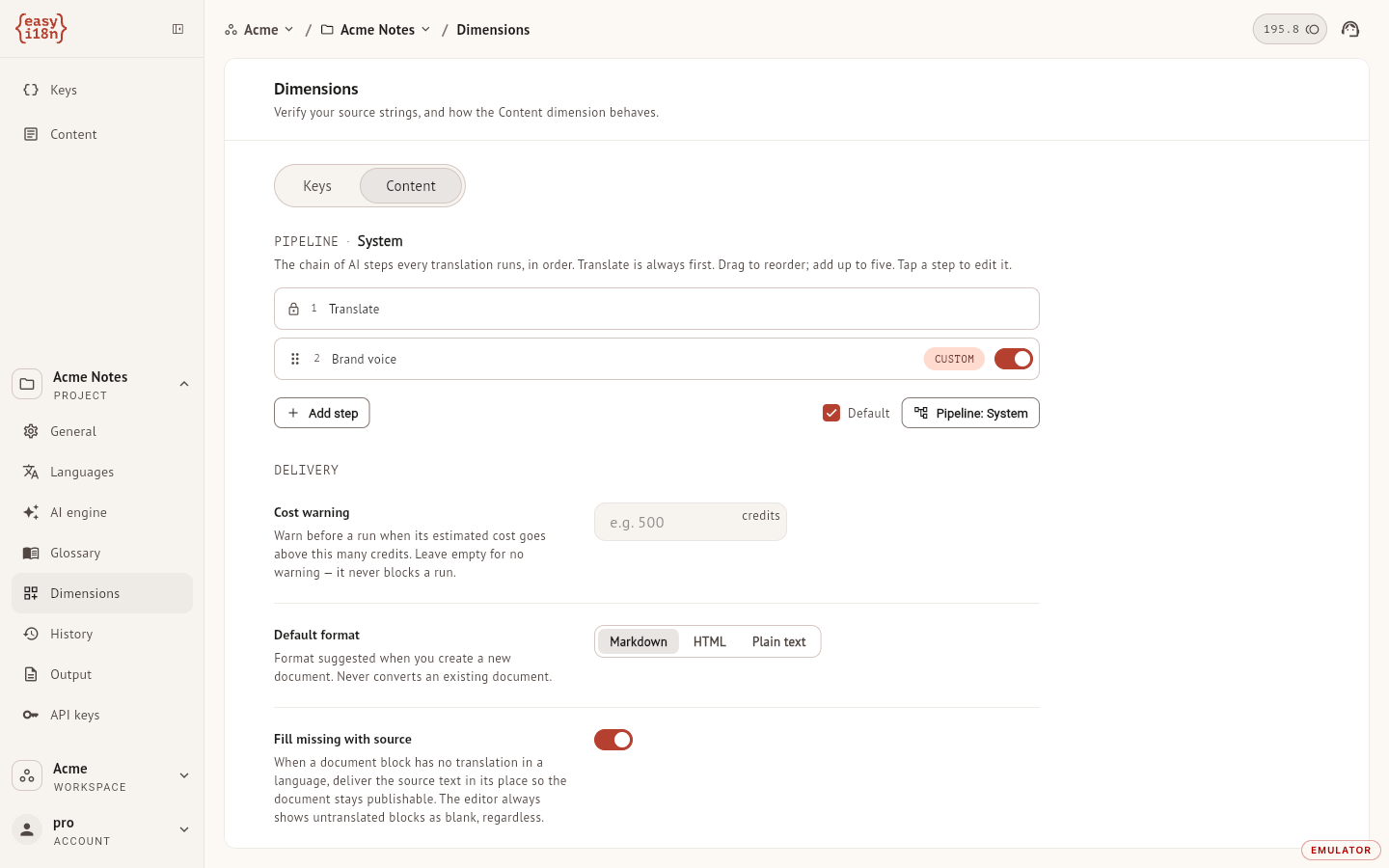
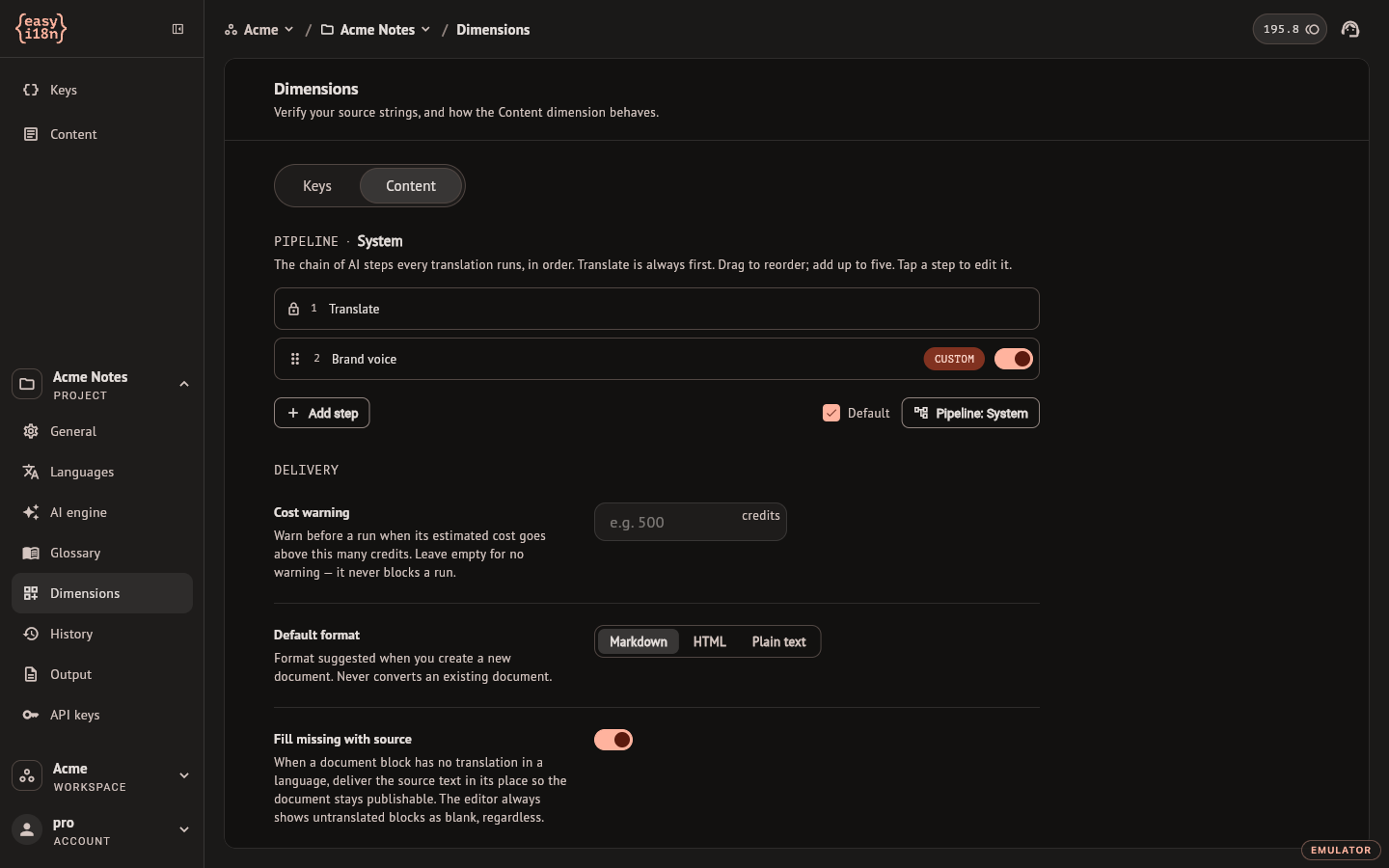
The steps of a pipeline
A run executes the steps from top to bottom, for each language. Translate is always first: it carries a lock, and it cannot be moved, switched off or removed. The steps after it take the translated text and rewrite it, each one receiving what the step before it produced. A pipeline holds five steps at most, Translate included.
Changes here are saved as you make them; the pipeline has no save button.
- Drag a step by its handle to move it.
- The switch on a step turns it off without removing it. A step that is off is skipped by runs.
- Select a step to open it.
The steps that follow Translate are steps you write. The dashboard does not offer ready-made steps besides Translate.
Instructions for the Translate step
Select Translate to open Translation instructions. What you write there is added to easyi18n's own translation prompt on every document of the project, for example "always address the reader informally". It refines the built-in rules and cannot override them. The project's context and tone, set under AI engine, already apply to every translation, and so does the project glossary.
A single document can carry its own instructions on top of these. They are in the Translation panel of the editor, described in Runs and review.
Write a step of your own
Custom steps need a paid plan. On the Free plan the library opens and New shows the upgrade dialog.
- Select Add step. The library lists the steps of the project that are not in the pipeline yet.
- Select New and give the step a name, up to 100 characters.
- Write the prompt, up to 2,000 characters: the full instruction for what the step does to the text. The AI button beside the field proposes a rewrite of your prompt, and you can undo it.
- Optionally pick a model for this step. Without one the step uses the project's default model.
- Select Save & Add to store the step and put it in the pipeline, or Save to store it in the library only.
Saving sends the prompt through an automated safety check. A prompt that fails it is refused with a message, and nothing is saved until you change it.
Every custom step rewrites the text it receives. Steps that only report on a text, such as a quality score, are not available.
Opening a step that is already in the pipeline shows the same form with a switch and a bin. Deleting a step takes it out of the pipeline and archives it; the dashboard cannot bring it back.
Several pipelines
A project starts with one pipeline, named System. On a paid plan you can keep more: select the Pipeline: button at the right of Add step, type a name and select Create. The same panel renames and deletes pipelines.
One pipeline is the default, marked with the Default checkbox. Documents that have not been given a pipeline of their own run the default. To move the default, open another pipeline and tick its checkbox. The default pipeline cannot be deleted, and documents that used a deleted pipeline go back to the default.
A different pipeline for one document
Open the document, open the Translation panel with the button at the top right of the editor, and look under Pipeline.
- When the project has more than one pipeline, a selector picks the one this document follows.
- The steps can be reordered and switched on or off for this document only. Steps cannot be added here.
- A document that differs from its pipeline shows Customized for this document and Reset to pipeline.
These changes take effect when you select Save at the foot of the panel. Edit pipelines leads back to the settings described above.
Cost warning
Under Delivery on the same tab, Cost warning takes a number of credits. When the estimate of a run goes above it, the dashboard shows the estimate and asks before starting. The warning never blocks a run, and an empty field means no warning. The estimate is a rough upper bound; what a run costs is measured on what the model used.
Progress by language
The Languages section of the project settings has one line of documents per target language, under its line of keys. The four counters are the documents that are untranslated, translated, reviewed and approved in that language, and the mark at the end is the worst one the language carries across the project, with a count. The marks are the ones of the document list.
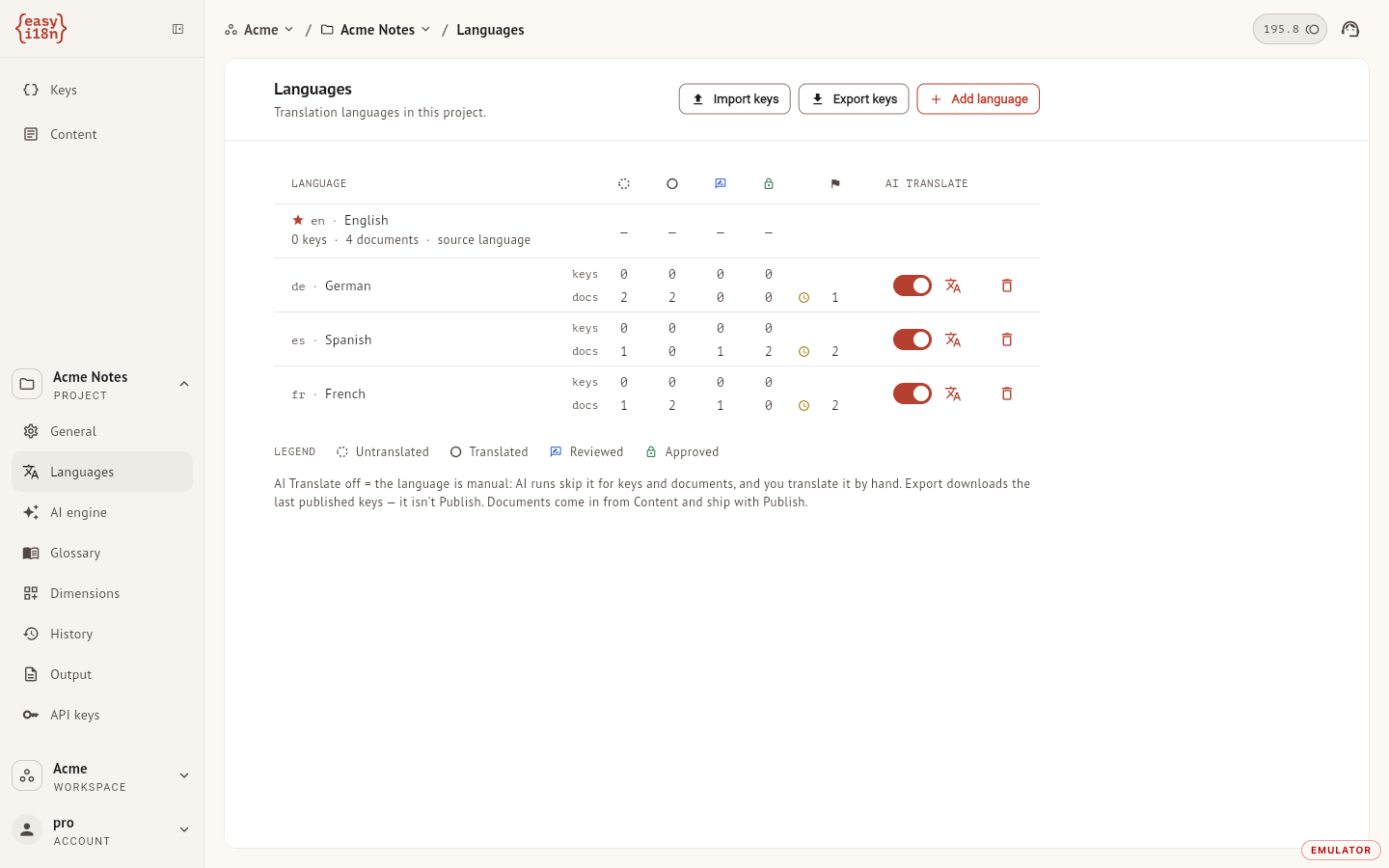
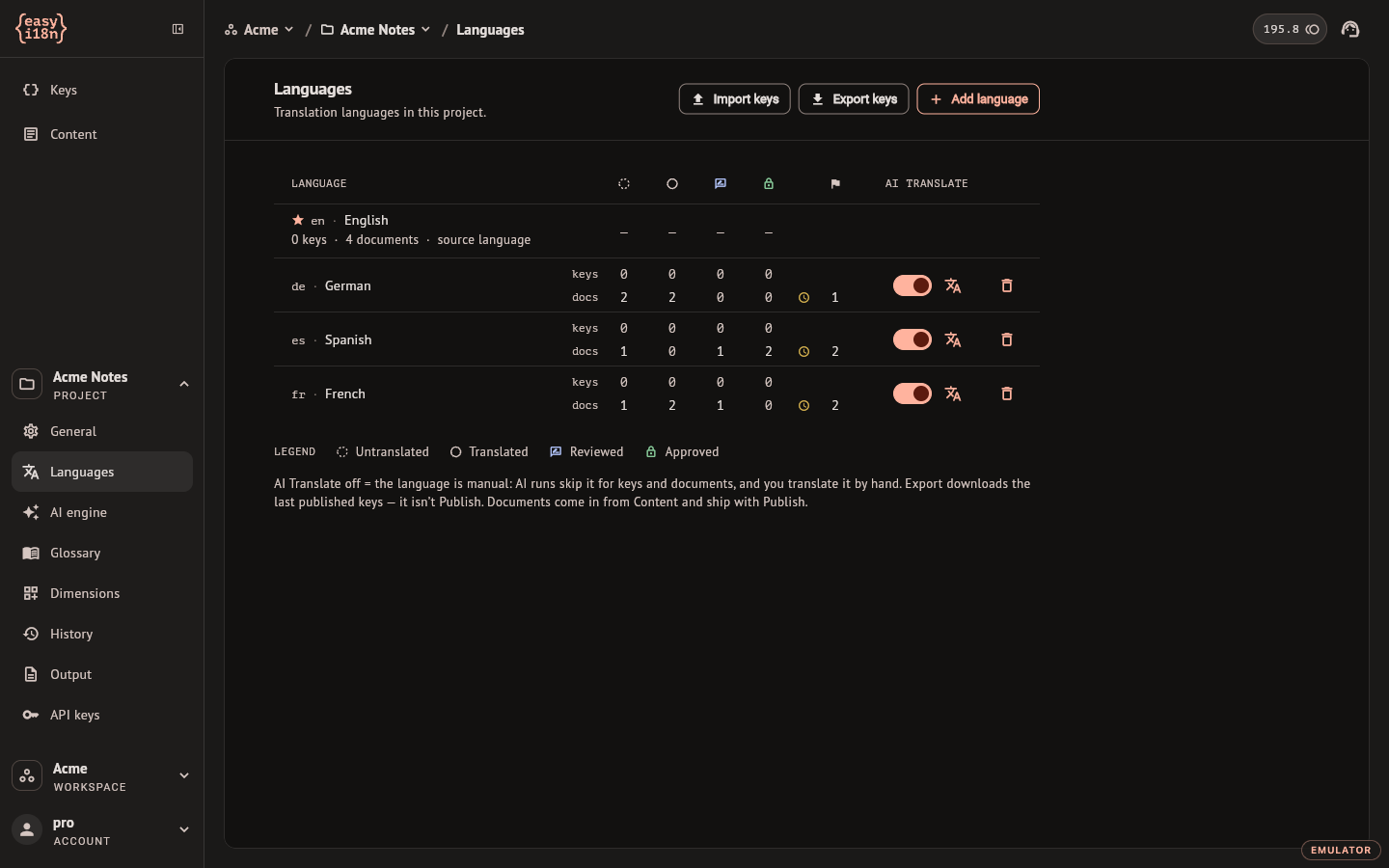
The AI Translate switch of a language applies to documents as it does to keys. With the switch off, AI runs skip the language and you translate it by hand.