Import keys
Import brings strings you already have into a project: from translation files, one per language, or with AI from a screenshot or a block of text. This page covers where the import starts, the file import and its report, what an import overwrites and what it keeps, the files that need AI, and extracting keys with AI.
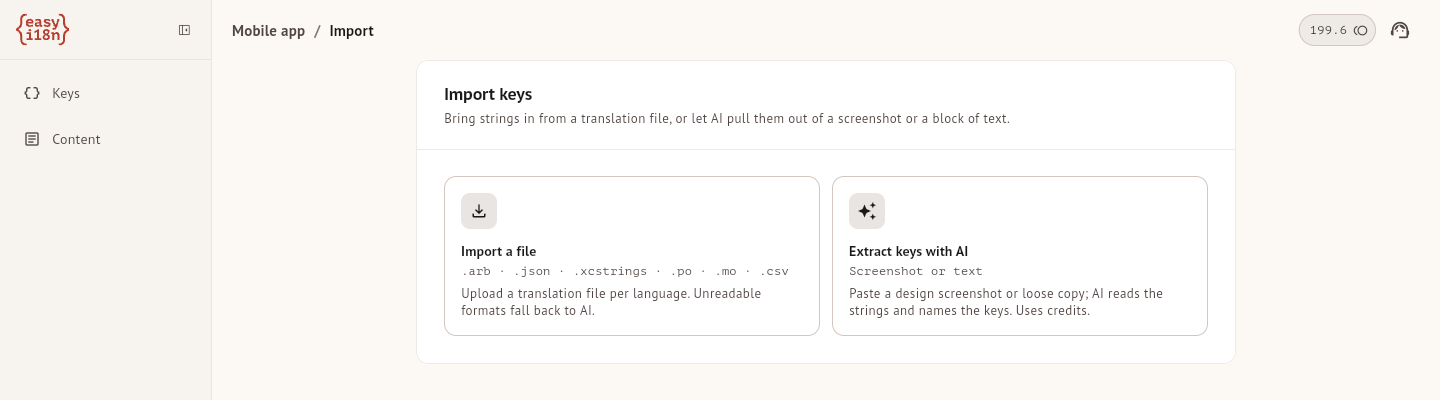
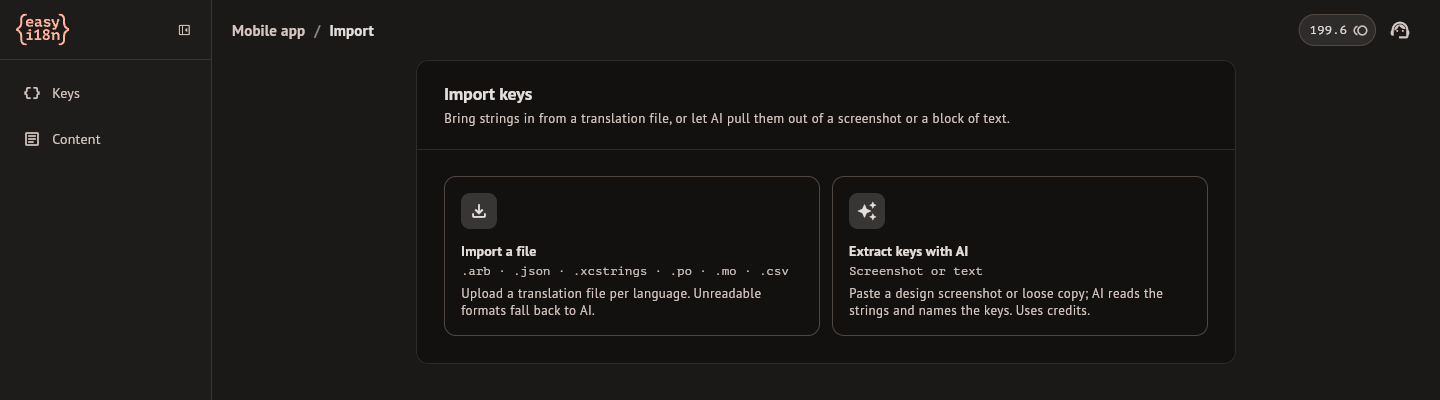
Open the import
- On the Keys screen, the button with the download arrow next to Key opens the Method step. Import a file reads translation files. Extract keys with AI reads a screenshot or pasted text and spends credits.
- In the project settings, Import keys in the Languages section opens the file import directly.
Importing needs the project owner or an editor. Above the card, the steps Method, Files or Input, and Review show where you are, and Method takes you back to the choice.
Import files
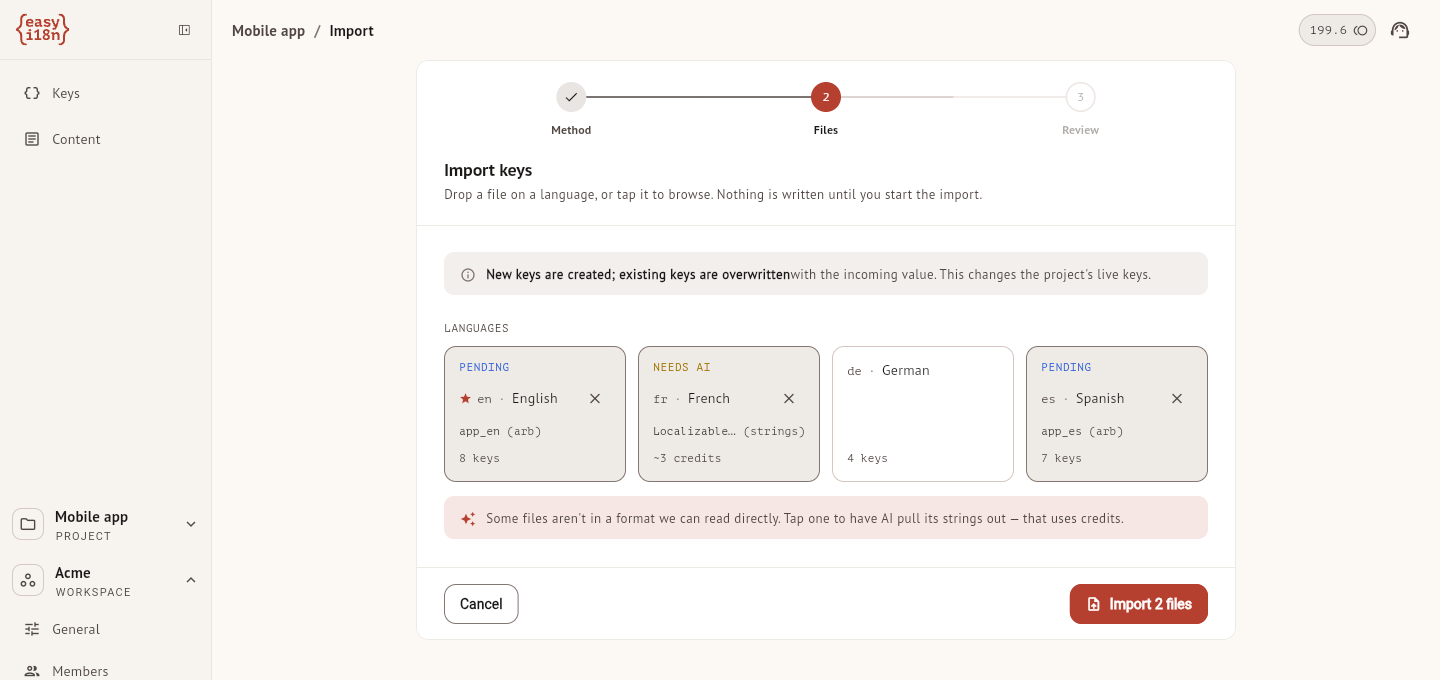
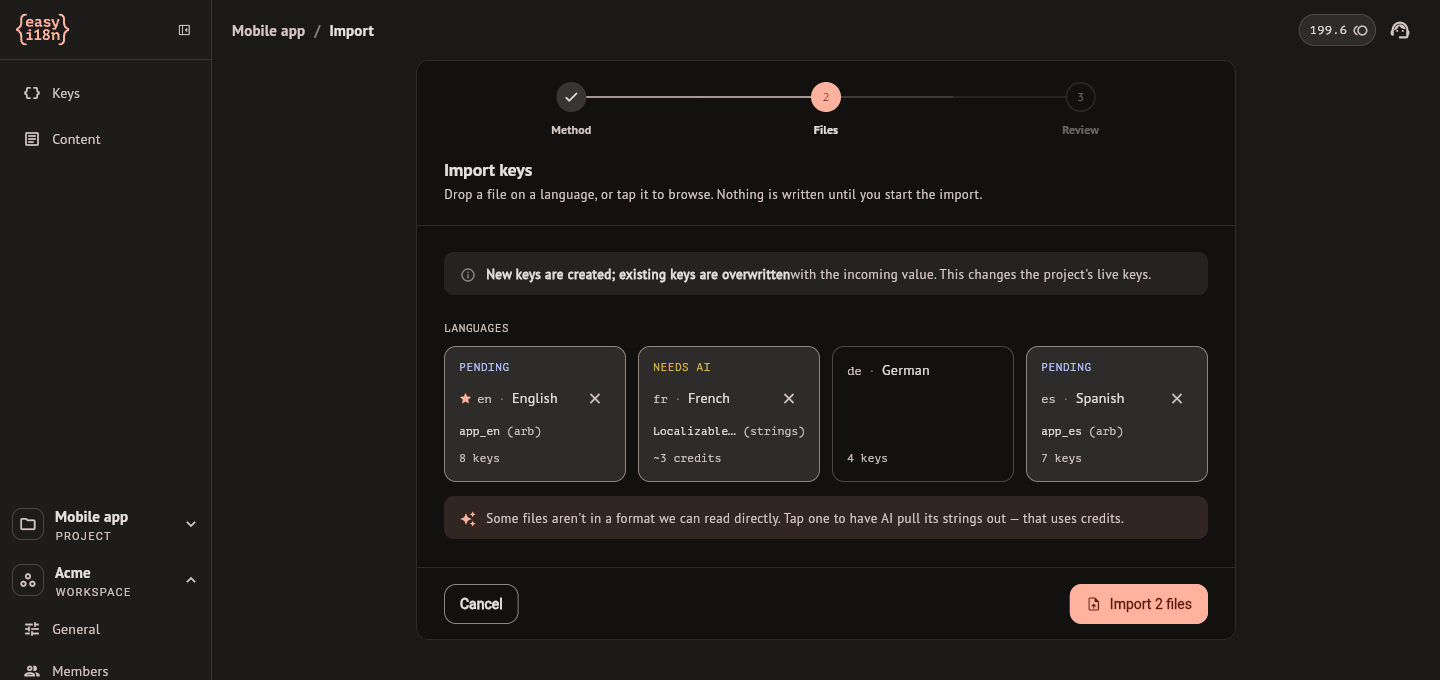
The Files step shows one card for each language of the project, the base language first. Each card states how many keys have text in that language.
- Drop a file on the card of its language, or select the card to browse. A card takes one file. The file is read at once and the card turns to Pending with the number of keys found in it.
- Queue the base-language file if the keys are not in the project yet. Only the base file creates keys. A file on another card fills translations of keys that exist, and a key the project does not have fails for that file.
- Select Start import, or Import 3 files when several are queued. The base-language file is applied first, so a translation file can fill keys that the base file creates in the same run.
Nothing is written until you start. The X on a card removes its file.
The import reads these files without AI and without spending credits:
| File | Extension |
|---|---|
| ARB | .arb |
| JSON, flat or nested, and Angular JSON | .json |
| String Catalog | .xcstrings |
| Gettext | .po, .mo |
| CSV | .csv |
A file can be up to 2 MB. The file formats reference describes what each format keeps and what it cannot express.
- String Catalog. One file holds every language. Drop it on the base-language card to create the keys from its source strings, and the same file on each other card to read that language's translations. A catalog with nothing for a language is refused on that card, with a message that says so.
- CSV. One row per string, with a key column and a value column. A third column for a description is optional, and the first row can be a header.
The label at the top of a card says what state its file is in:
| Label | Meaning |
|---|---|
| Reading | The file is being read |
| Pending | The file was read and waits for the import |
| Needs AI | The format is not one of the table above. See Files that need AI |
| Can't read | The file cannot be used. A line under the cards gives the reason |
| Importing | The import is writing this file |
| Imported | The file was applied. The last line of the card counts what it wrote |
What an import writes
An import changes the working state of the project, the same keys the editor shows. It does not publish.
The base-language file. A key the project does not have is created. For a key that exists, the text in the file replaces the source, with one exception: a source that a person typed in the editor is kept. The translations of a key whose source changed are not touched. Review and statuses explains how a changed source shows on them.
A file for another language. Its values become the translations of that language, with the status Translated and the origin Imported. A value that differs from the stored one replaces it, unless the stored translation was typed or signed by a person, or written by AI for the source text the key has now. Those are kept. A translation that came from an earlier import is replaced, and so is an unsigned AI translation whose source changed after it was written.
Three more rules hold for every file:
- A row that already matches what the project stores writes nothing and is counted as unchanged.
- A row with an empty value fails. An import never clears a translation.
- An import does not start an AI translation. The languages you did not import stay untranslated until you run Translate.
Read the report
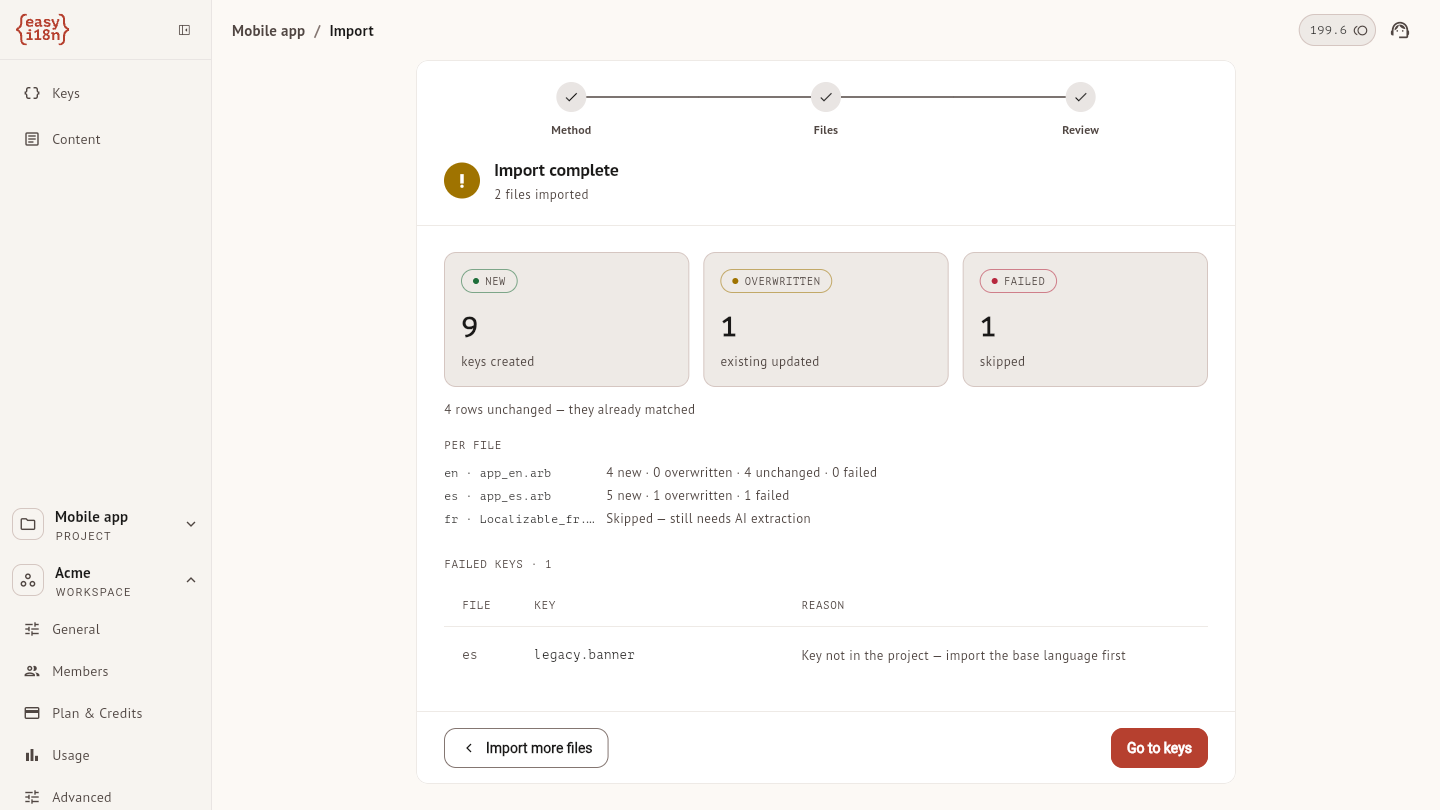
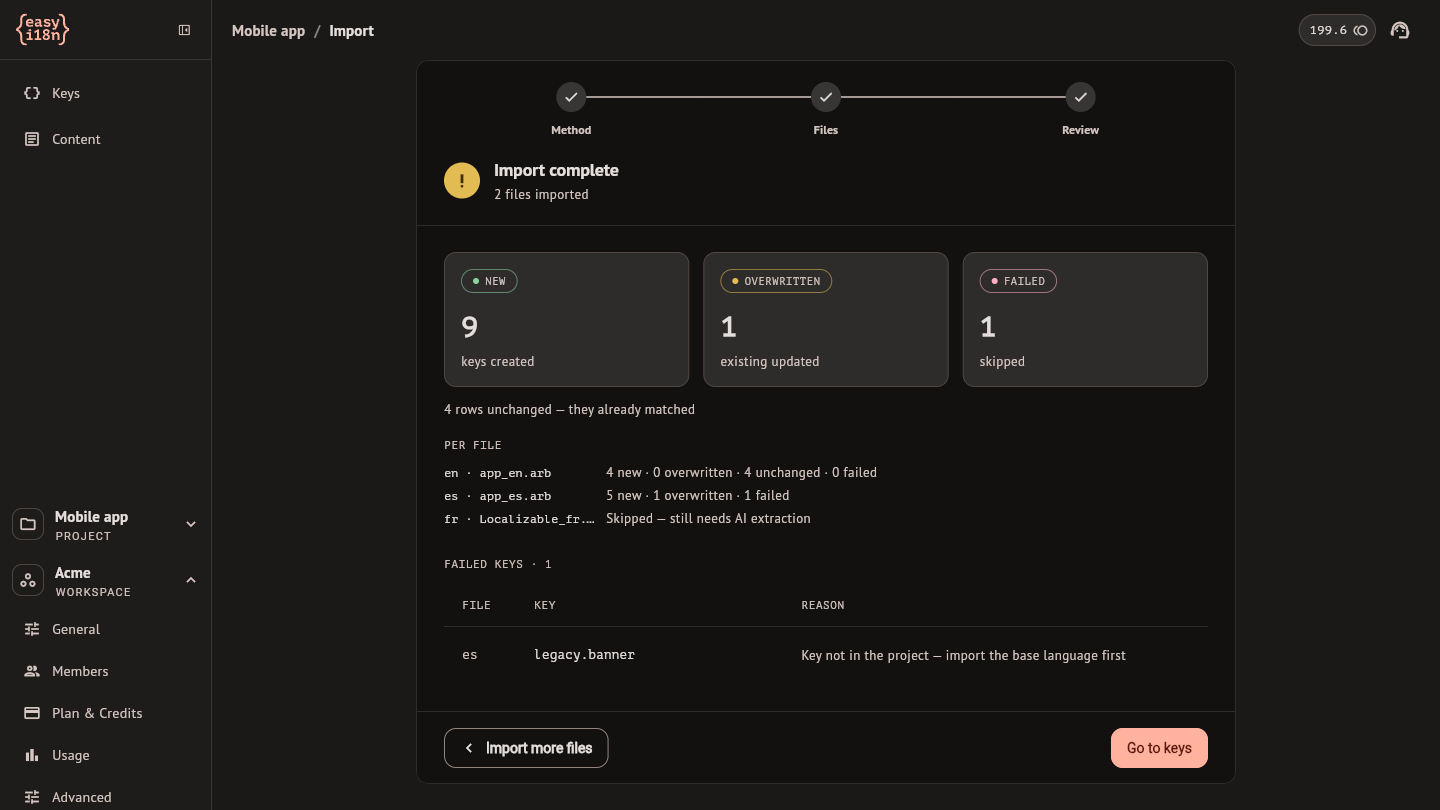
When the run ends, Import complete shows three counts: New for keys or translations that did not exist, Overwritten for the ones that were replaced, and Failed.
Under the counts:
- A line counts the rows that were kept because the project has newer work for them, and another the rows left unchanged because they already matched.
- Per file, when the run had several files, gives the same counts for each one.
- Failed keys lists up to 25 rows with the key and the reason.
- Warnings lists rows that were imported with something lost on the way, such as a String Catalog whose source language is not the base language of the project.
| Reason | What to do |
|---|---|
| Empty key | The row has no key name. Fix the file |
| Empty value | The row has no text. Remove it or fill it |
| Duplicate key in this file | Two rows give the same key. The first one was imported |
| Key not in the project — import the base language first | Import the base-language file, then this one again |
If the account sends too many requests while a large file is applied, the import waits and resumes by itself. Importing the same file again is safe: the rows already applied come back as unchanged.
Import more files returns to the cards, which keep what each file wrote. Go to keys opens the Keys screen.
Files that need AI
A file in any other format, such as an iOS .strings file or a text
document, gets the label Needs AI and an estimate, as in ~3 credits. So
does a file in which the import found no entry.
- Select the card. AI reads the file and the credits are charged.
- The Review step lists what it found for that file. On the base-language card, a key that exists is a conflict to resolve with Overwrite or Skip. On another card, a row whose key exists has Import or Skip, and the other rows are marked Not in project and are left out.
- Select the button at the bottom, which states the count, as in Import 6 keys. The card turns to Pending and the file runs with the rest of the queue.
Going back from the review keeps the extracted rows. Selecting the card again shows them without a second charge, for as long as you stay on the import. A file left as Needs AI when the import starts is skipped, and the report says so.
AI is not offered for a file that is not text, for an empty file, or for a
file whose rows are all blank, such as a .po that was never translated. The
text of a file sent to AI can be up to 200,000 characters. If the strings
look like another language than the card, a warning names both languages.
The file is still imported as queued unless you remove it.
Extract keys with AI
Extract keys with AI creates keys from material that is not a translation file: a design screenshot, a list of labels, a specification.
- In the Input step, paste text or a screenshot into the field with ⌘V on macOS or Ctrl+V elsewhere, or select Image to choose an image file. The field takes text and one image together.
- Select Extract with AI. The credits are charged for what the model reads. Nothing is written yet.
- In the Review step, check each row. You can edit the key name and the value of any row.
- Select the button at the bottom, which states how many keys it will write, as in Import 6 keys.
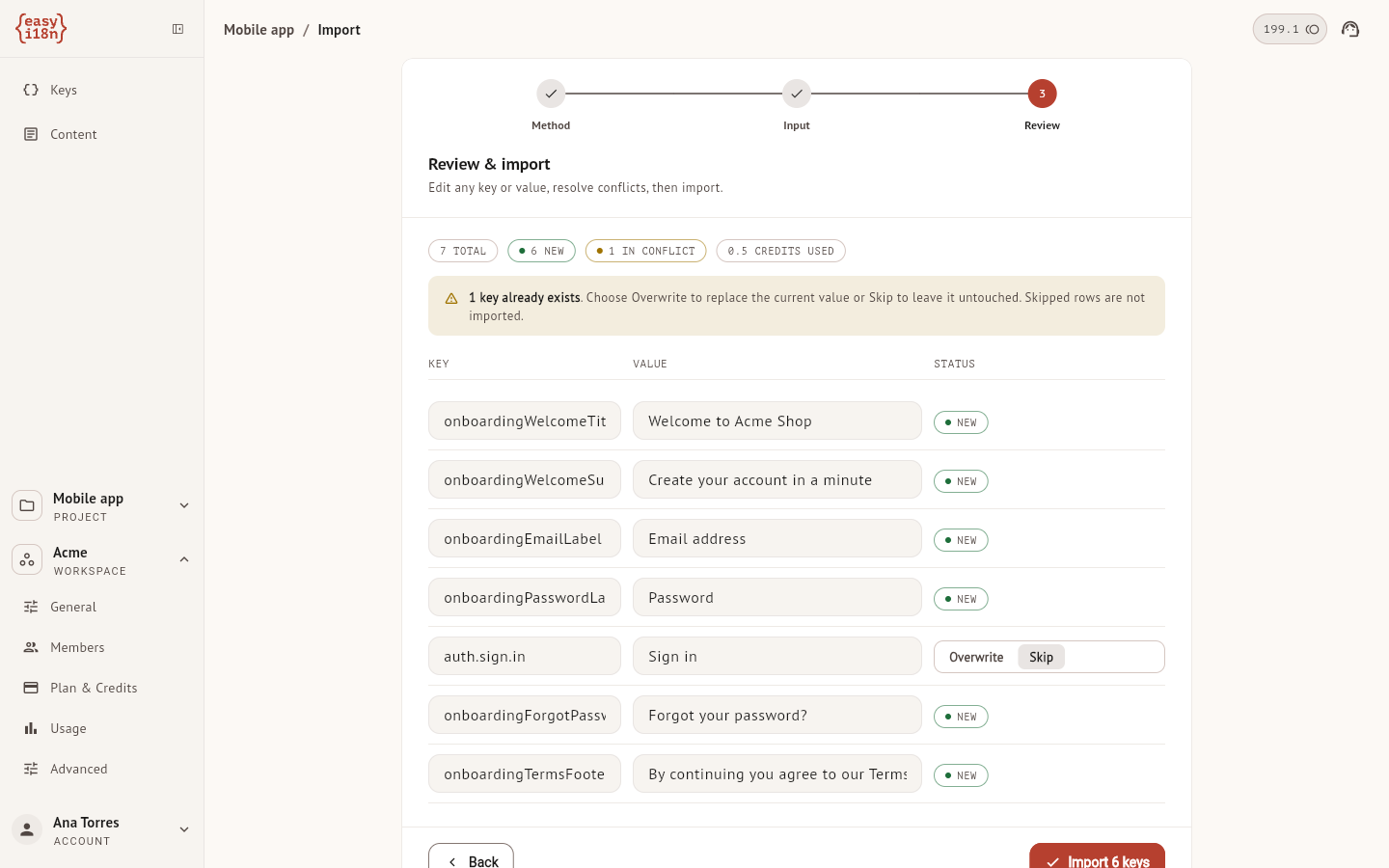
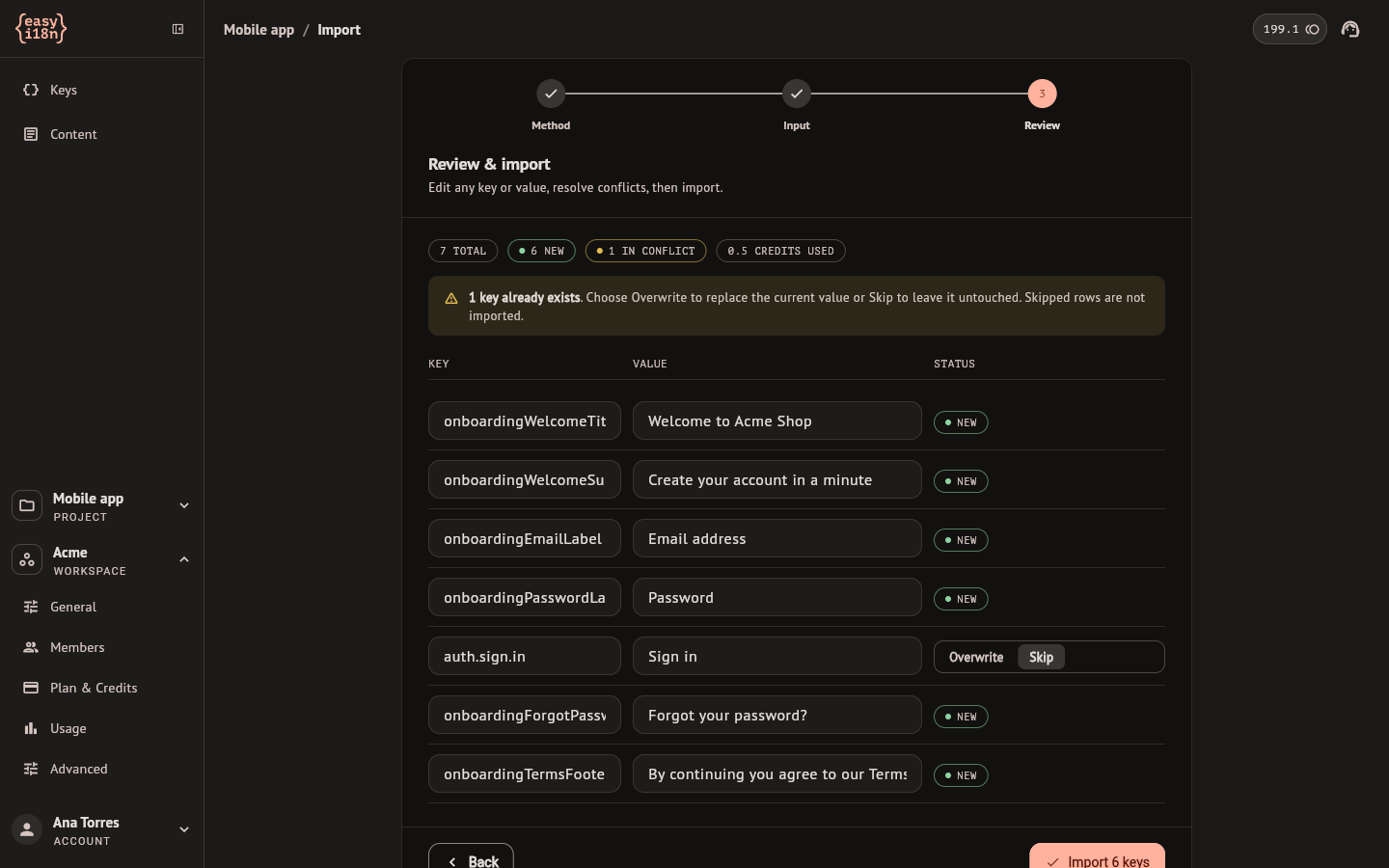
The Status column says what happens to each row:
| Status | Meaning |
|---|---|
| New | The key will be created |
| Overwrite or Skip | A key with that name exists. Skip is preselected and leaves the key as it is. Overwrite replaces its source |
| Plural | The row is a plural with the forms AI detected. Its value is edited in the key editor after the import |
| Duplicate | Two rows have the same key name. Rename one, or neither is imported |
| Invalid | The name has characters other than letters, numbers, dots and underscores. The row is not imported |
Text can be up to 200,000 characters and an image up to 5 MB. When the workspace has no credits left, the extraction does not start and a dialog says why.
The keys are created with their source text only. No translation starts, so run Translate when the keys are in.