Key sources
Key sources lists what a verification of the whole project found in the base-language texts: typos, grammar, unclear wording, tone, terms and duplicates. Each finding comes with the current text, a suggested one when there is a fix, and the actions to accept or dismiss it. This page covers where the list opens, how to read a finding, the decisions and how they are saved, duplicates, and the code changes a correction can leave for the developers.
Source verification comes with the paid plans. Translate with AI covers verifying one key from the editor and the switch that asks for a verified source before translating.
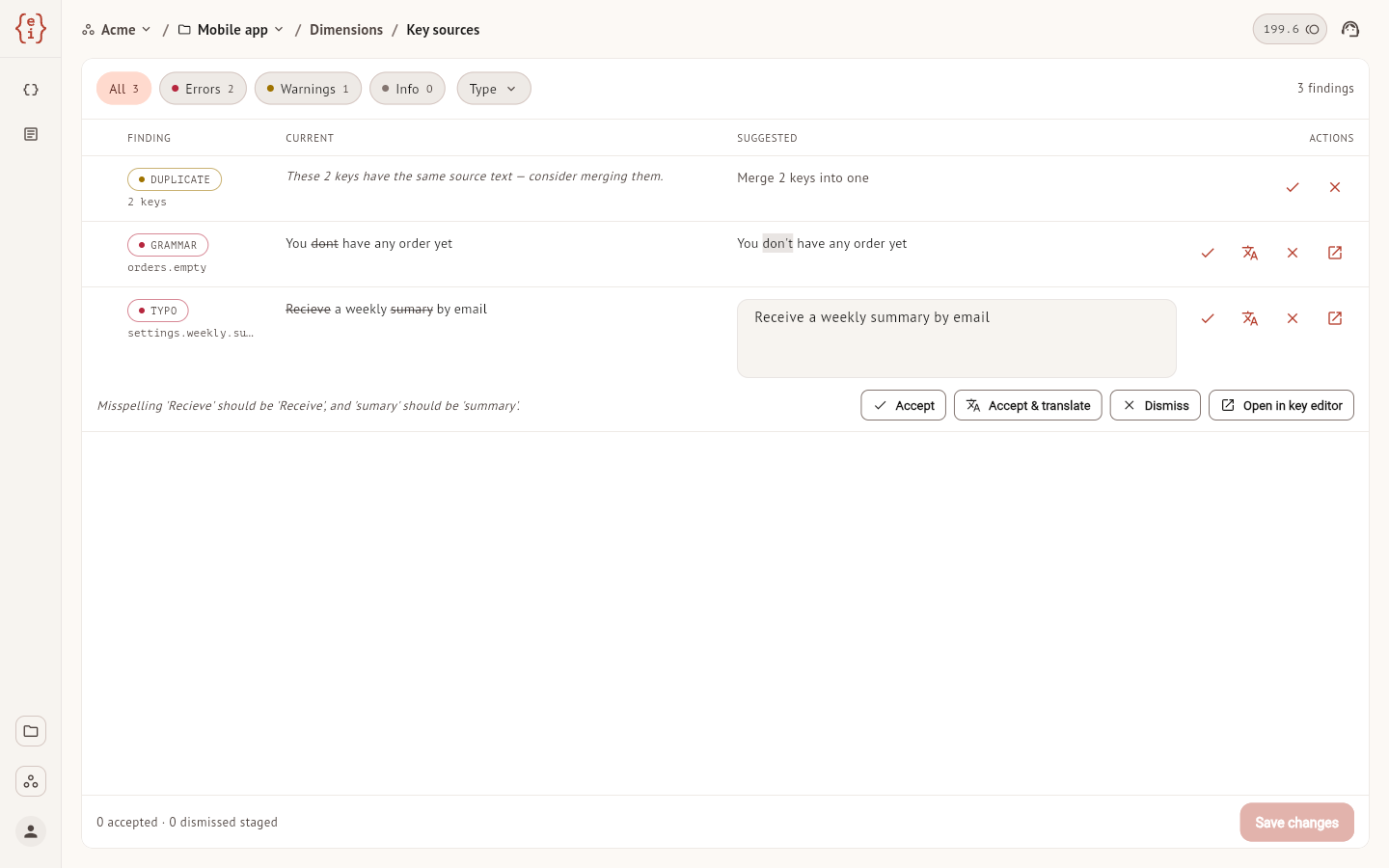
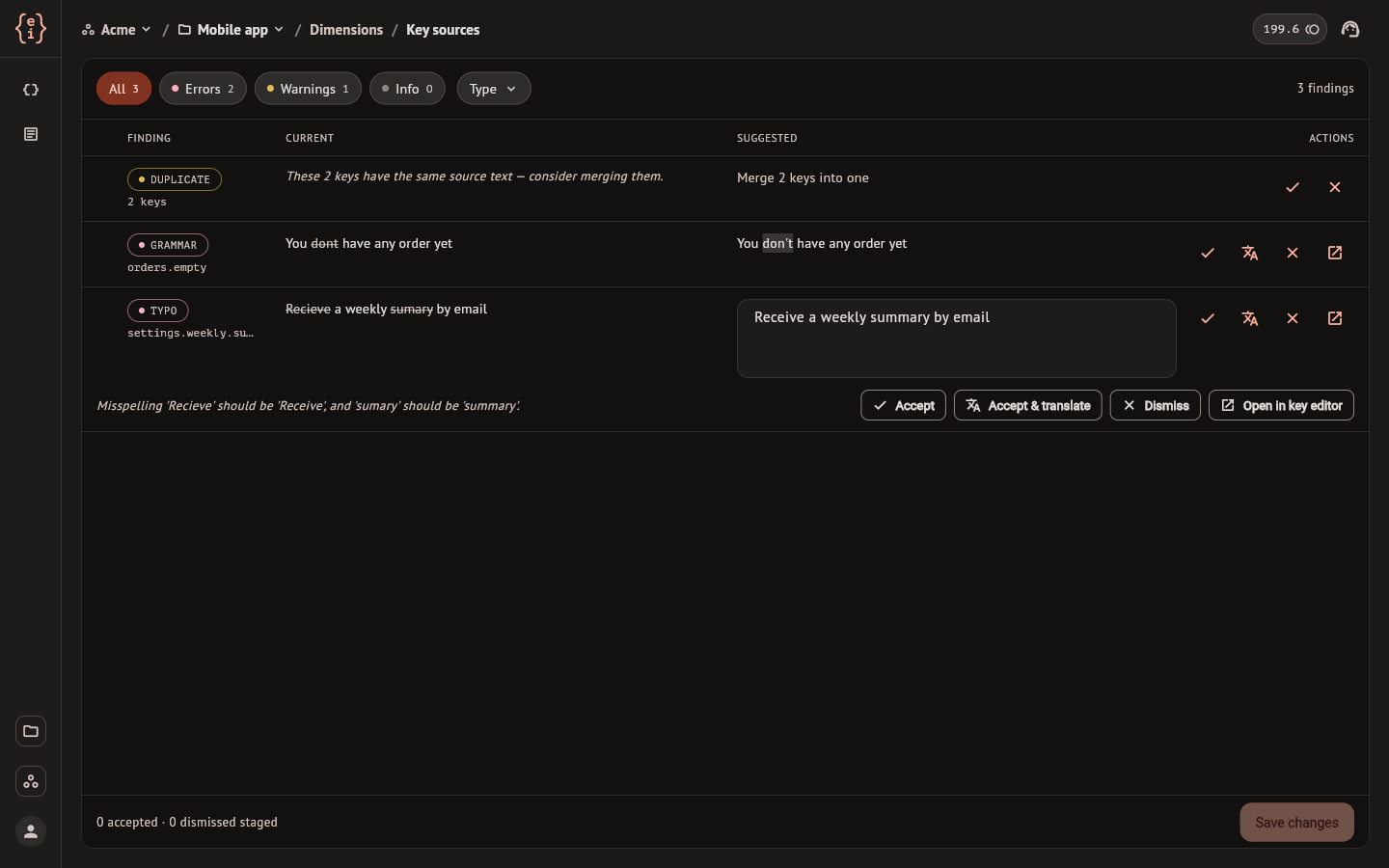
Open the list
- In the project settings, select Dimensions, stay on the Keys tab and select Verify sources with AI.
- When a translation run leaves keys out because their source is not verified, a dialog says how many, and Verify sources in it opens the same screen.
On the Free plan both open the upgrade dialog, and the list itself shows Verify your sources with AI with Upgrade to Pro instead of a verification.
Verify the whole project
Verify sources at the end of the filter bar, with the count in its label, starts a verification of every key whose source is not verified yet: new or changed sources, and keys that still have open findings, which are checked again. On an empty list the same button is the list's action. When every source is verified the list reads All sources verified and there is no button.
The button opens a dialog before anything is spent. It shows how many sources are new or changed and how many are checked again, the model, which is the project's default, and the credits available. The estimate appears once the run starts: the run sets aside up to twice that amount and returns what it does not use. A verification replaces the findings it checks again, so when decisions are staged the dialog offers Save first, which saves them without starting the run, and Discard and verify.
While a verification runs, the button reads Checking and the run shows above the list with its progress, the number of sources it checks and the credits it is expected to cost, and a control that cancels it. Its findings join the list as they land, and Save changes is off until it finishes. When it ends, a message says Verification finished with the credits it used; a cancelled or failed run keeps the findings that landed.
Only owners and editors can start a verification: a viewer sees the button disabled.
Verify on a key in the editor checks that key only, and its result shows in the editor, not in this list.
Read a finding
Each row is one finding.
| Column | Content |
|---|---|
| Finding | The type, with a dot in the color of its severity, and the key. Select the key name to copy it |
| Current | The source as it is, with the words the suggestion removes struck through |
| Suggested | The corrected text, with the new words highlighted. Report only means there is no fix to accept |
| Actions | Accept, accept and translate, dismiss, and open the key in the editor |
The types are Typo, Grammar, Clarity, Tone, Term, Duplicate, Placeholder, ICU, Plural and Length. A plural source is checked for its structure only, so its findings are report only.
Select a row to open it. The suggested text becomes a field you can edit before accepting, and a line under it gives the reason for the finding.
The chips above the list narrow it by severity, Errors, Warnings or Info, each with its count, and Type narrows it to the types you tick. A filter hides rows without clearing their checkboxes.
Decide and save
A decision is staged first. Nothing changes in the project until you select Save changes.
| Action | When saved |
|---|---|
| Accept | The suggested text, or your edit of it, replaces the source of the key |
| Accept & translate | The same, and the key is translated again in its target languages, which spends credits |
| Dismiss | The source stays as it is and the finding is closed |
| Open in key editor | Nothing is staged. The key opens in the editor |
Selecting a staged action again withdraws it, and Clear in the footer
withdraws them all. The footer counts what is staged, as in
2 accepted · 1 dismissed staged.
After the save, a message states how many were applied and how many dismissed. If the source of a key changed after the verification ran, its finding is not applied and the message counts it as changed since the run. When the last finding of a key is accepted or dismissed, the source of that key counts as verified.
To decide on many rows, tick their checkboxes and select Bulk. Accept and Dismiss in the panel stage the same decision on every selected row. Report-only findings cannot be accepted and are skipped.
Duplicates
A duplicate finding covers several keys with the same source text and suggests merging them. Open the row to see the keys:
- Select the key to keep. It is marked as the survivor and the others as retired.
- Select Accept merge, then Save changes.
The survivor keeps its name and its own translations. The retired keys are deleted from the project, and their translations are not moved to the survivor. The row says the deletion cannot be undone: the dashboard has no screen that lists or restores a deleted key. Trash describes what a deleted key leaves behind. Check where the retired names are used before you merge.
Code changes for developers
In a project where the keys come from tr('…') calls in the code, the source
text is written in the code as well. Accepting a correction changes it in
easyi18n only, so the project records a code change for each corrected key:
the old text and the new one.
The dashboard does not list them. A developer applies them with the CLI:
easyi18n apply          # preview the rewrites
easyi18n apply --write  # rewrite the tr() literals
The record of a key closes when a later push sends the corrected text. The
command reference has the options,
and the same list is available to a script through the
API.