Your account
Your account is yours across every workspace you belong to. Its settings are at the foot of the left rail, in the group that carries your name: Profile, Security, Preferences and About, with Sign out below them.
Profile
Display name is how you appear to the other members and on the comments you write. Change it and select Save.
The email address is the one you sign in with. It is shown here and cannot be changed from the dashboard.
Security
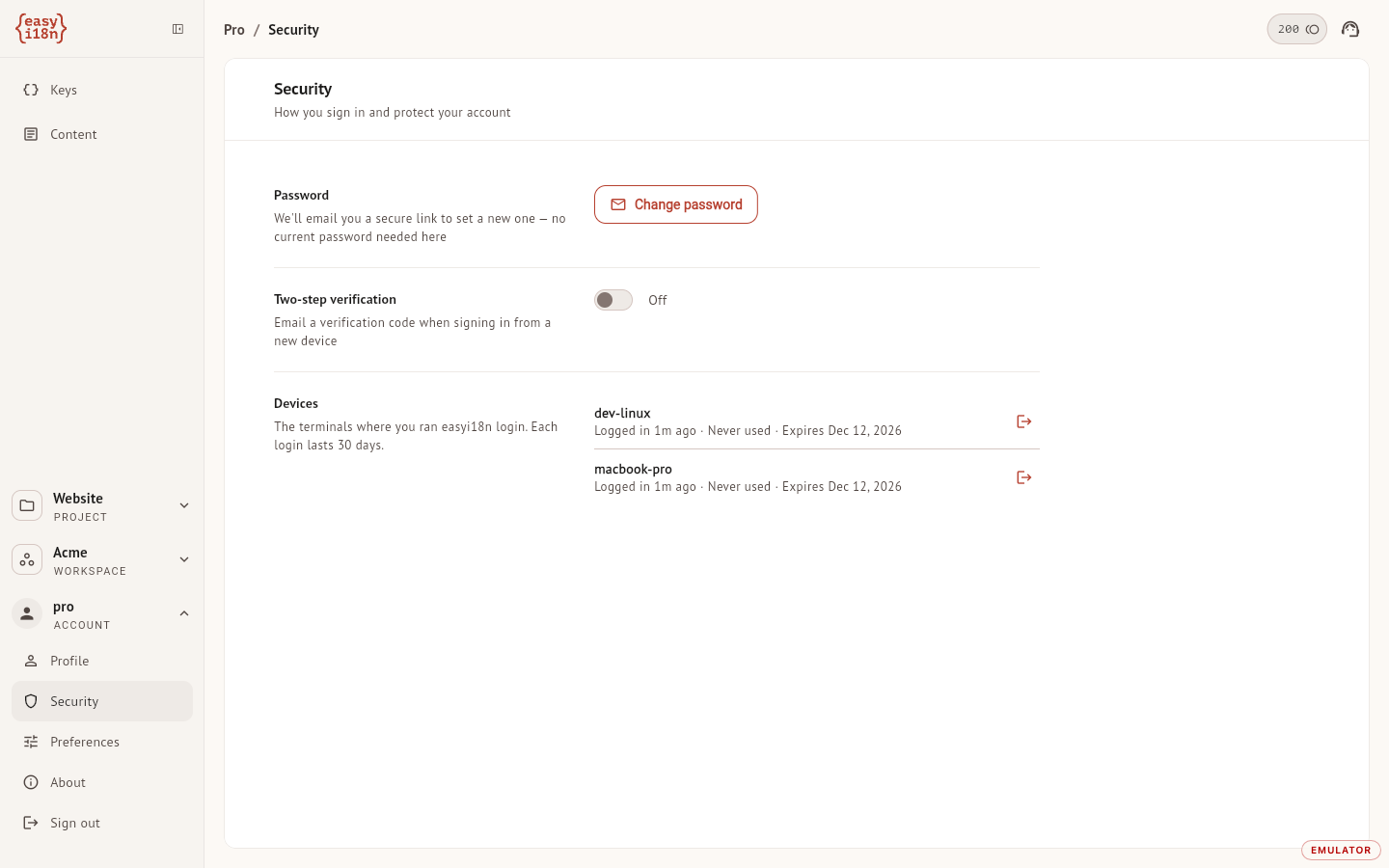
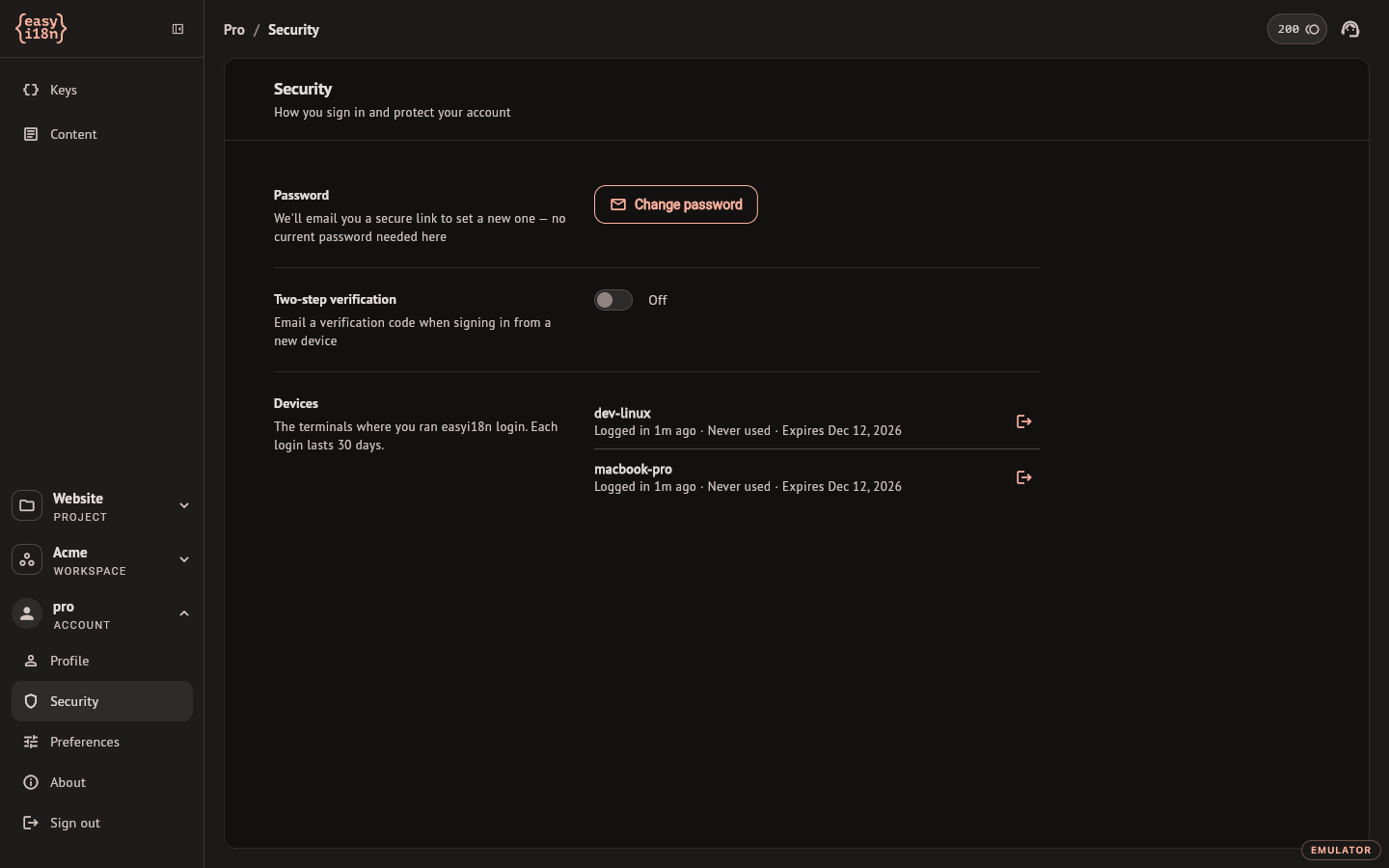
Password. Change password does not ask for the current one. It emails you a link to set a new password; the link expires after one hour, and Resend sends another.
Two-step verification. With the switch on, signing in from a new or untrusted device asks for a six-digit code that easyi18n emails you. After entering it you choose whether to trust that device for 30 days. Turning the switch off asks for confirmation, because from then on the password alone opens the account.
Devices. The list shows each terminal where you ran easyi18n login,
with when it logged in, when it was last used and when the login expires. A
login lasts 30 days. The revoke button at the end of a row signs that
terminal out at once, with no confirmation; running easyi18n login there
again brings it back. Before the first login the list is empty.
Approve a terminal login
easyi18n login prints a code and opens the Approve login page of the
dashboard. If the page opens without the code, type it in and select
Continue. Sign in first if the browser has no session.
The page names the device that asks and shows how long the request has left. Select Approve only when the code on the page is the one your terminal shows: for 30 days, the CLI on that device and the AI tools that use it can spend credits and publish as you. Deny refuses the request. Either way the page then sends you back to the terminal.
An account holds 10 logins at once. With 10 in use the page says so and
Manage devices opens the list above; revoke one, then approve again. A
request that expired or was already answered cannot be approved: run
easyi18n login again. The CLI reference
covers the command.
Preferences
- Appearance switches between System, Light and Dark, and applies at once. The choice is saved on the device you make it on.
- Interface language is the language of the dashboard itself. It has nothing to do with the languages of your projects: changing it translates no key and no document.
Delete your account
Delete account, at the bottom of Profile, is permanent and takes effect at once: there is no trash and no waiting period for an account.
Two things block it, and the section lists them with a link to each:
- a workspace you own still has projects. Delete the projects first;
- a workspace you own has an active subscription. Cancel it in Plan & Credits first.
With nothing blocking, the dashboard asks you to type your email address to confirm. When a workspace you own has other people in it, the dialog first names it with the number of other members and pending invites that lose access. If you signed in more than a few minutes ago, it also asks you to prove it is you: with your password, or with Google if that is how you sign in. Deleting the account removes your sign-in and your personal data, deletes the workspaces you own, including the access of the people you had invited to them, and takes you out of the workspaces of others.
About
About shows the version of the app you are running and links to this documentation, the website, the Terms of Service and the Privacy Policy.