Billing and credits
A workspace pays for itself: it carries the plan, the AI credit balance and the spending cap, and every project in it draws from them. This page covers the three places where you manage that: the Plan and Credits tabs of Plan & Credits, and Usage. All of them are in the workspace settings, at the foot of the left rail. What a credit is and what spends it is in Concepts.
This page does not repeat prices or plan limits. They are on the pricing page, and the Plan tab shows the ones that apply to your workspace.
Who sees what
Billing belongs to the workspace owner. For an admin or a member, the Plan tab says that billing is managed by the owner, and the Credits tab shows the balance without the credit packs or the spending cap. The Usage list is readable by the owner and the admins. To change who the admins are, see Members and roles.
Payments go through Stripe. easyi18n opens Stripe's checkout and billing portal in your browser and never sees the card.
Plans
The Plan tab shows one card per plan, Free, Pro, Team and Enterprise, with an Annual / Monthly switch for the prices. The card of your current plan is marked Current plan and carries its status.
| On the current plan's card | Meaning |
|---|---|
| Free forever, no card on file | The workspace is on Free |
| Trial ends, with a date | A trial is running |
| Renews, with a date | The subscription is active and renews on that day |
| Cancels, with a date | Renewal is off; the plan stays until that day |
| Payment issue: update your card | The last charge failed |
Upgrade on a paid plan opens Stripe's checkout. Prices are in US dollars and checkout adds the tax of your country. A free trial lasts 14 days and is available once per account, not once per workspace. Starting it asks for a billing address and no card; add a card under Manage billing before the trial ends to keep the plan, otherwise the workspace moves to Free on that day.
Enterprise is sold through a contract and shows Contact sales instead of a price. It opens the support panel with a message ready for you to review and send, and the conversation goes to the easyi18n team without the assistant answering first. Compare plans, on the same tab, opens the pricing page.
When Stripe returns you to the dashboard after a checkout, a dialog confirms it once the plan has switched. If that takes longer than usual, the dialog says the checkout is complete, and the page updates by itself.
A plan chosen on the pricing page while signed out takes you through sign-up and then opens the checkout for that plan from Plan & Credits. With several workspaces on Free, the dashboard first asks which one the plan is for.
Once a workspace has a subscription, Manage billing opens Stripe's portal, where you change the card, download invoices, switch plan or cancel.
Go back to Free
From a paid plan, Downgrade on the Free card asks for confirmation and then opens Stripe's portal. Cancel the subscription there: confirming in the dashboard does not cancel it. The workspace keeps its plan until the end of the period you already paid for and then moves to Free. Nothing is deleted. Projects beyond the Free limit become read-only, as Concepts describes, and the owner sees a banner at the top of the app with the number of read-only projects and a way to upgrade. Top-up credits stay in the balance.
When a charge fails, the owner sees a banner that cannot be dismissed, with Update payment method, which opens Plan & Credits. From there, Manage billing leads to the card.
Credit balance
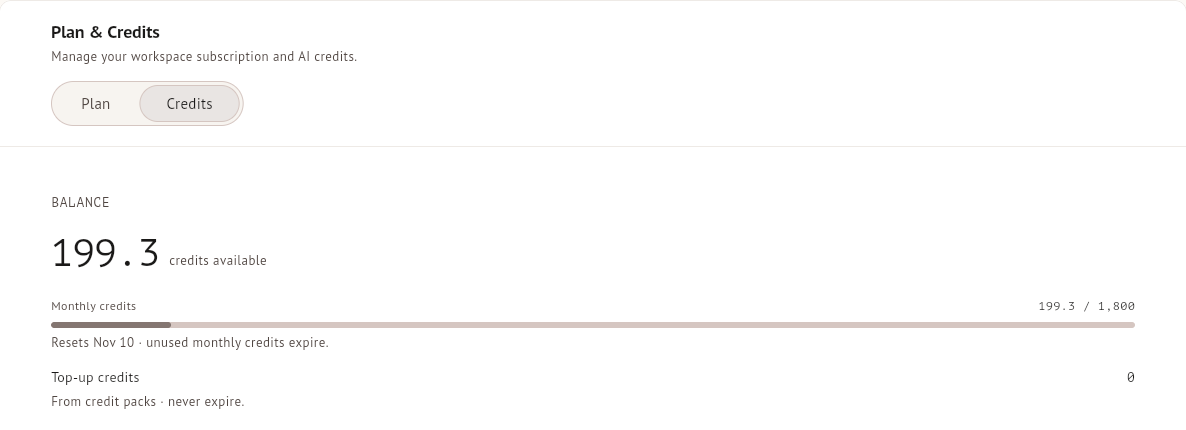
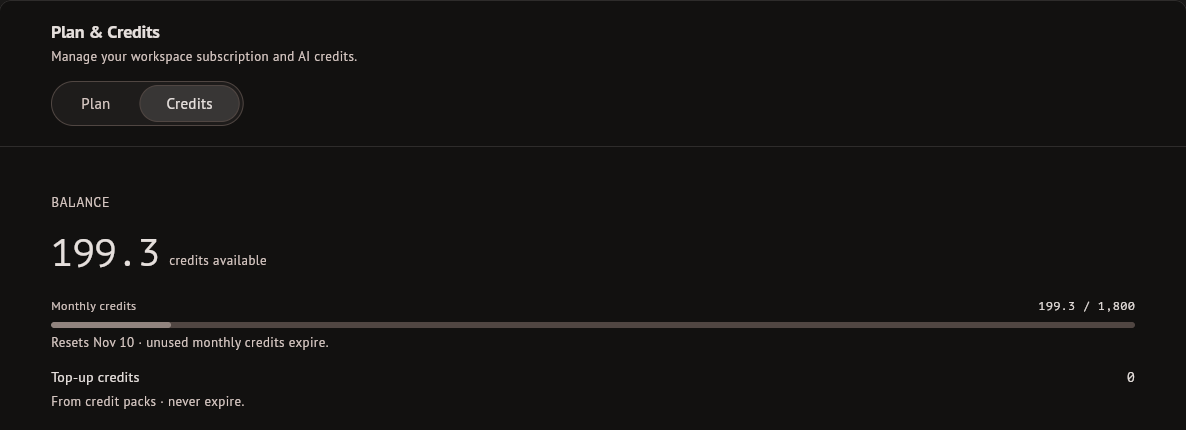
The Credits tab opens with the balance, split in two:
- Monthly credits come with the plan. The card shows the date they reset; what is left on that date expires.
- Top-up credits come from credit packs and never expire.
An operation spends monthly credits first and takes from the top-up credits only when the monthly ones run out.
AI work is charged after it runs, so an operation that was already running when the credits ran out is charged in full and can take the balance below zero. The card then shows the amount as credits owed. The next credit pack or the next monthly credits pay that back first, and AI operations start again once the balance is above zero.
Buy credits
Under Buy credits, each pack shows its credits and its price. Selecting one opens Stripe's checkout, which charges the pack's price plus the tax of your country; there is no separate processing fee. Bigger packs give slightly more credits per dollar, up to the $50 pack. The credits are added to the top-up balance when Stripe confirms the payment, and back in the dashboard a dialog shows how many were added and the new balance.
Monthly spending cap
The cap is an amount in US dollars. Enter it, or switch on No limit to remove it, and select Save. Below the field, the tab shows what the workspace has spent this month against the cap.
The cap counts every credit the workspace consumes, monthly or top-up. When consumption reaches it, AI operations stop with the message "Monthly spending cap reached", and they start again when the owner raises the cap or when the month resets, on the same date as the monthly credits. Editing by hand, reviewing, publishing and exporting are not affected.
Usage
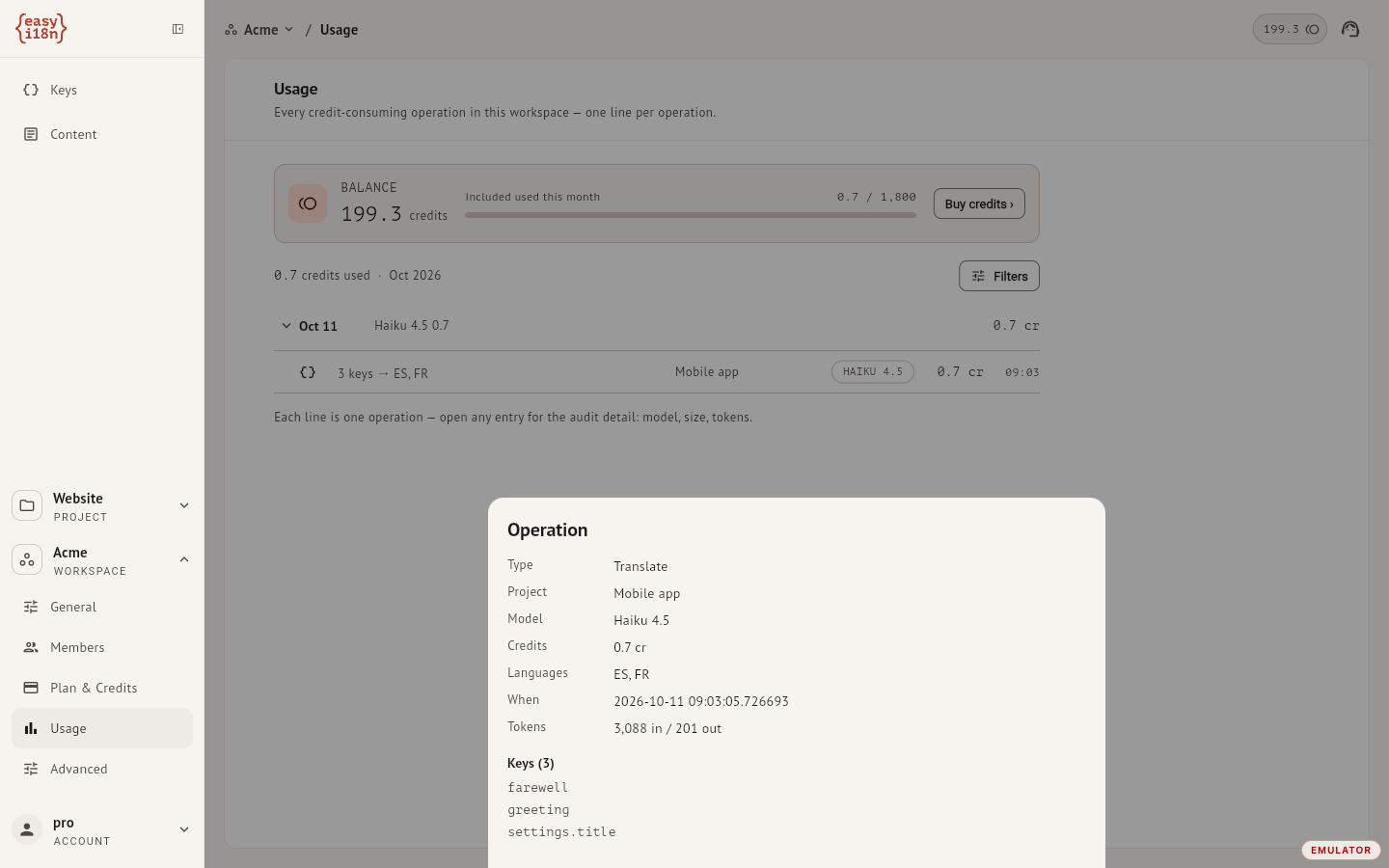
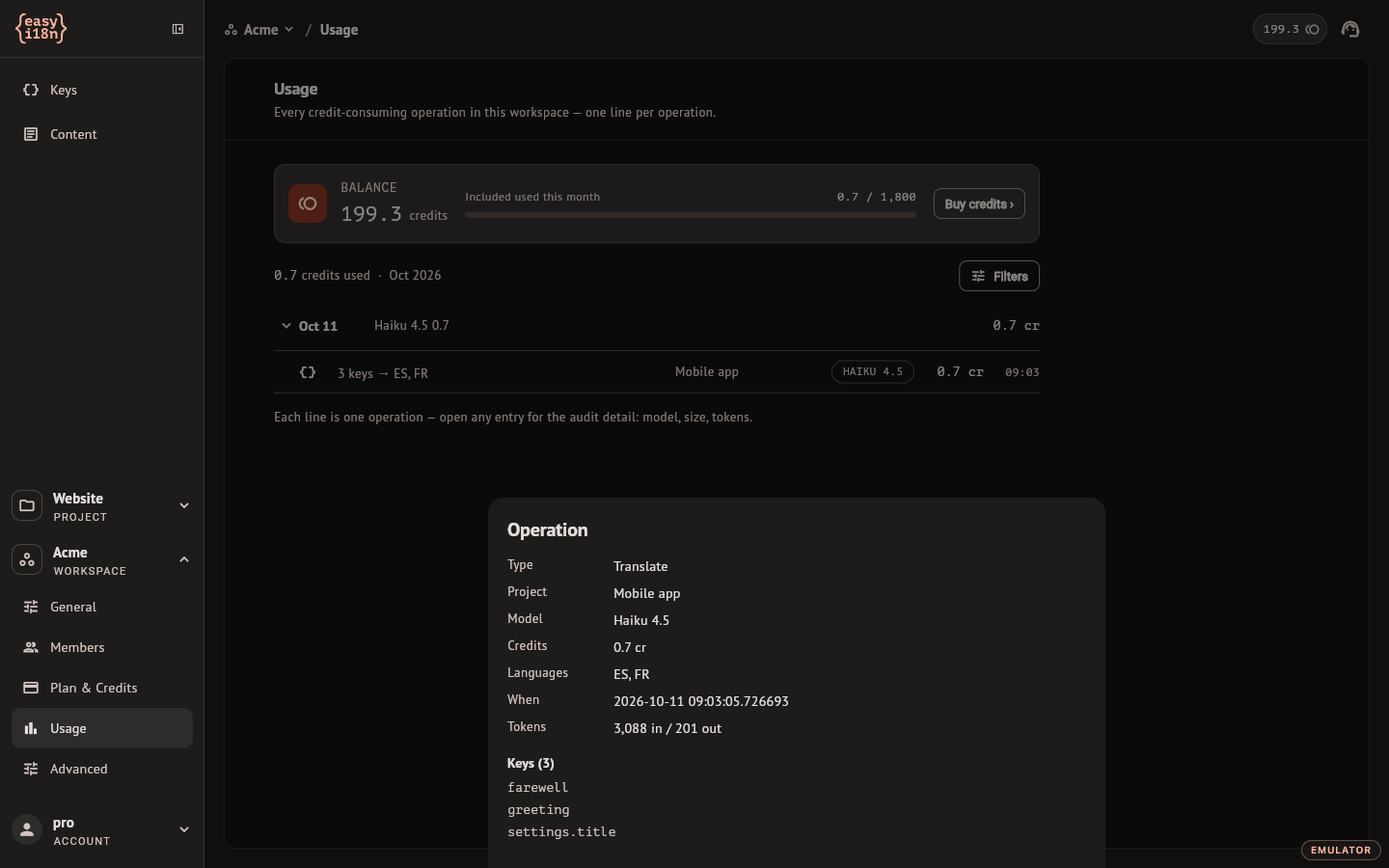
Usage lists every operation that consumed credits, one line each, grouped by day, with the credits it cost. The strip above the list shows the balance and how many of the monthly credits are used.
Filters narrows the list by project, by model and by month, for the current month and the five before it. The total next to it follows the filters.
Select a line to see the detail of that operation: its type, project and model, the credits charged, the languages, the time, the tokens the model reported in and out, and the keys it touched. The types are Translate, Improve, Copywrite, Suggest key and Content.